> ## Documentation Index
> Fetch the complete documentation index at: https://help.trypawgress.com/llms.txt
> Use this file to discover all available pages before exploring further.
# Google Meet Integration
> Automatically create Google Meet links for your virtual training sessions
## What is the Google Meet Integration?
Google Meet lets you host virtual training sessions without any extra setup. When you schedule a session and choose **Google Meet** as the format, Pawgress creates a Meet link automatically and shares it with your client.
**Pro Feature**
Google Meet requires a Pawgress Pro subscription. Google Meet itself is free.
**It shares your Google connection**
Google Meet uses the same Google account connection as Google Calendar. Connecting one connects the other, and disconnecting one disconnects both. If you've already [connected Google Calendar](/guides/integration/google-calendar), Google Meet is ready to use.
## Setting Up Google Meet
### Step 1: Open Integrations
Click your avatar in the top-right corner and select **Integrations**.
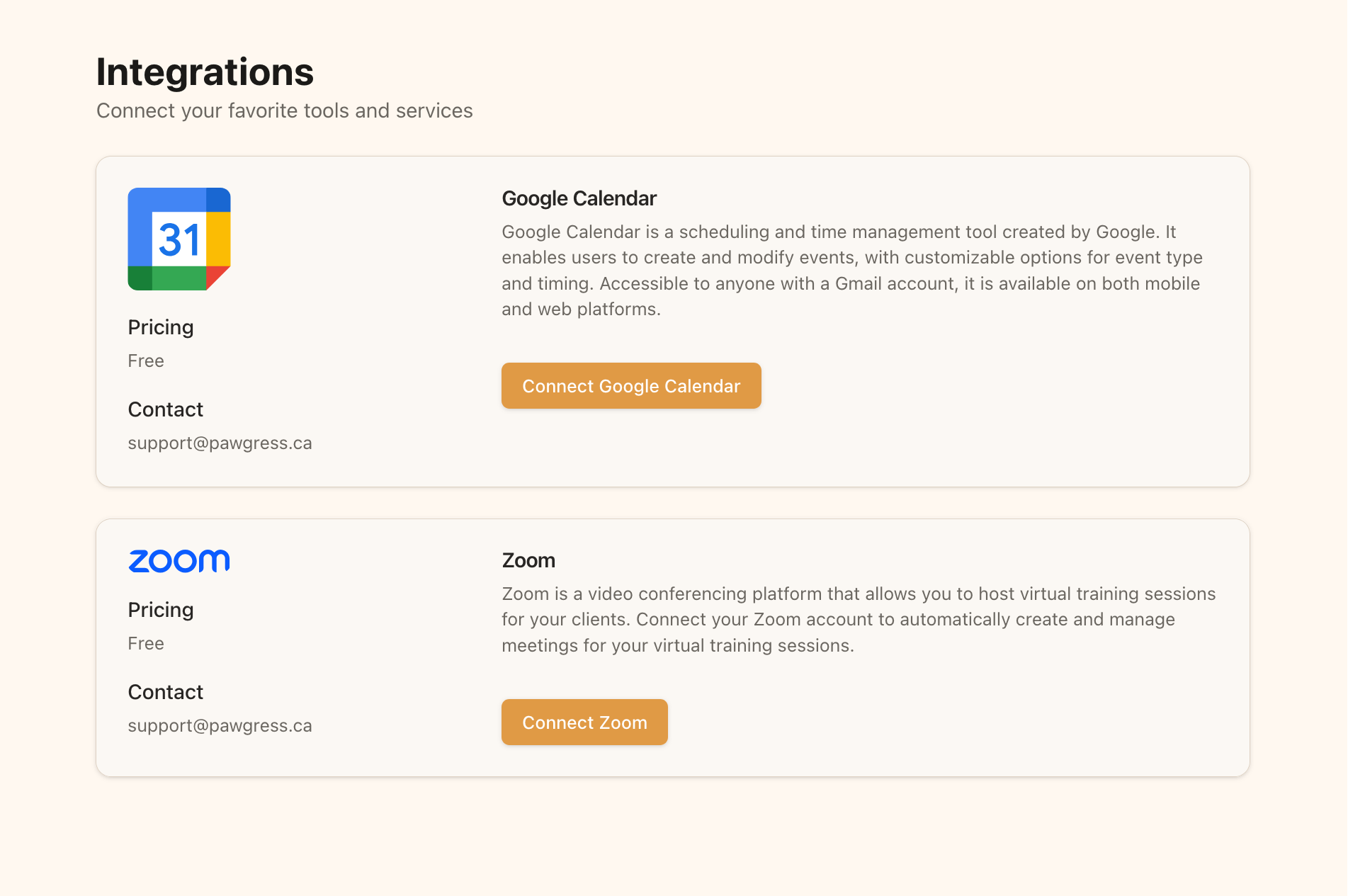 The Integrations page shows the third-party services you can connect
### Step 2: Connect your Google account
Find the **Google Meet** card and start the connection. You'll be sent to Google to sign in and grant Pawgress permission, then redirected back to Pawgress.
If Google Calendar is already connected, Google Meet shows as connected too — there's nothing more to do.
### Step 3: Verify
The card shows your connected Google account, with the option to disconnect later.
## Using Google Meet for a Session
1. Open **Sessions** and click **New session**
2. Fill in the client, package, and date and time
3. Under **Where**, choose **Google Meet**
4. Save
A Meet link is created for the session and shared with your client. Sessions with a Meet link show a **Virtual** badge on the sessions list.
If Google Meet is greyed out in the **Where** selector, your Google account isn't connected. Connect it from the Integrations page and try again.
## Setting Google Meet as a Package Default
You can attach a video integration to a package so every session booked under it becomes a Google Meet session automatically — useful for a virtual-only consultation or an online coaching program. Set this on the package's video integration option when creating or editing it.
## Google Meet vs Zoom
Both are supported and both appear in the **Where** selector when connected. Pick based on what you already use:
| | Google Meet | Zoom |
| ------- | -------------------------------------- | ----------------------------------------------- |
| Cost | Free | Free tier with a 40-minute limit on group calls |
| Setup | Shares your Google Calendar connection | Separate connection |
| Best if | You already use Google Calendar | You already run your business on Zoom |
You can connect both and choose per session.
## Troubleshooting
### Meet isn't selectable
Check the Integrations page. Because Meet and Calendar share one connection, disconnecting Google Calendar also removes Google Meet.
### No link on the session
Confirm the session's format is set to Google Meet rather than In-person, and that your Google connection is still active.
For persistent issues, contact [support@pawgress.ca](mailto:support@pawgress.ca).
## Next Steps
* [Connect Google Calendar](/guides/integration/google-calendar) to sync sessions to your calendar
* [Schedule a session](/guides/scheduling/schedule-session)
The Integrations page shows the third-party services you can connect
### Step 2: Connect your Google account
Find the **Google Meet** card and start the connection. You'll be sent to Google to sign in and grant Pawgress permission, then redirected back to Pawgress.
If Google Calendar is already connected, Google Meet shows as connected too — there's nothing more to do.
### Step 3: Verify
The card shows your connected Google account, with the option to disconnect later.
## Using Google Meet for a Session
1. Open **Sessions** and click **New session**
2. Fill in the client, package, and date and time
3. Under **Where**, choose **Google Meet**
4. Save
A Meet link is created for the session and shared with your client. Sessions with a Meet link show a **Virtual** badge on the sessions list.
If Google Meet is greyed out in the **Where** selector, your Google account isn't connected. Connect it from the Integrations page and try again.
## Setting Google Meet as a Package Default
You can attach a video integration to a package so every session booked under it becomes a Google Meet session automatically — useful for a virtual-only consultation or an online coaching program. Set this on the package's video integration option when creating or editing it.
## Google Meet vs Zoom
Both are supported and both appear in the **Where** selector when connected. Pick based on what you already use:
| | Google Meet | Zoom |
| ------- | -------------------------------------- | ----------------------------------------------- |
| Cost | Free | Free tier with a 40-minute limit on group calls |
| Setup | Shares your Google Calendar connection | Separate connection |
| Best if | You already use Google Calendar | You already run your business on Zoom |
You can connect both and choose per session.
## Troubleshooting
### Meet isn't selectable
Check the Integrations page. Because Meet and Calendar share one connection, disconnecting Google Calendar also removes Google Meet.
### No link on the session
Confirm the session's format is set to Google Meet rather than In-person, and that your Google connection is still active.
For persistent issues, contact [support@pawgress.ca](mailto:support@pawgress.ca).
## Next Steps
* [Connect Google Calendar](/guides/integration/google-calendar) to sync sessions to your calendar
* [Schedule a session](/guides/scheduling/schedule-session)