> ## Documentation Index
> Fetch the complete documentation index at: https://help.trypawgress.com/llms.txt
> Use this file to discover all available pages before exploring further.
# Message Your Clients
> Email one client, a whole group class, or a hand-picked list — personalized with each client's name, pet, and session details
## Overview
You can email clients from two places in Pawgress:
| Where | Best for | Fields you can use |
| - | - | - |
| **Sessions** page | Anything about a specific session or class — schedule changes, what to bring, homework | First name, pet name, session time, location |
| **Clients** page | Messages that aren't tied to one session — check-ins, announcements, new classes | First name, pet name |
Each client gets their own copy, addressed to them. Clients never see who else received the message.
**Before your first message**
[Connect your email account](/guides/messaging/connect-email) — Gmail or any provider over SMTP. Messages are sent from your own address.
## Messaging From the Sessions Page
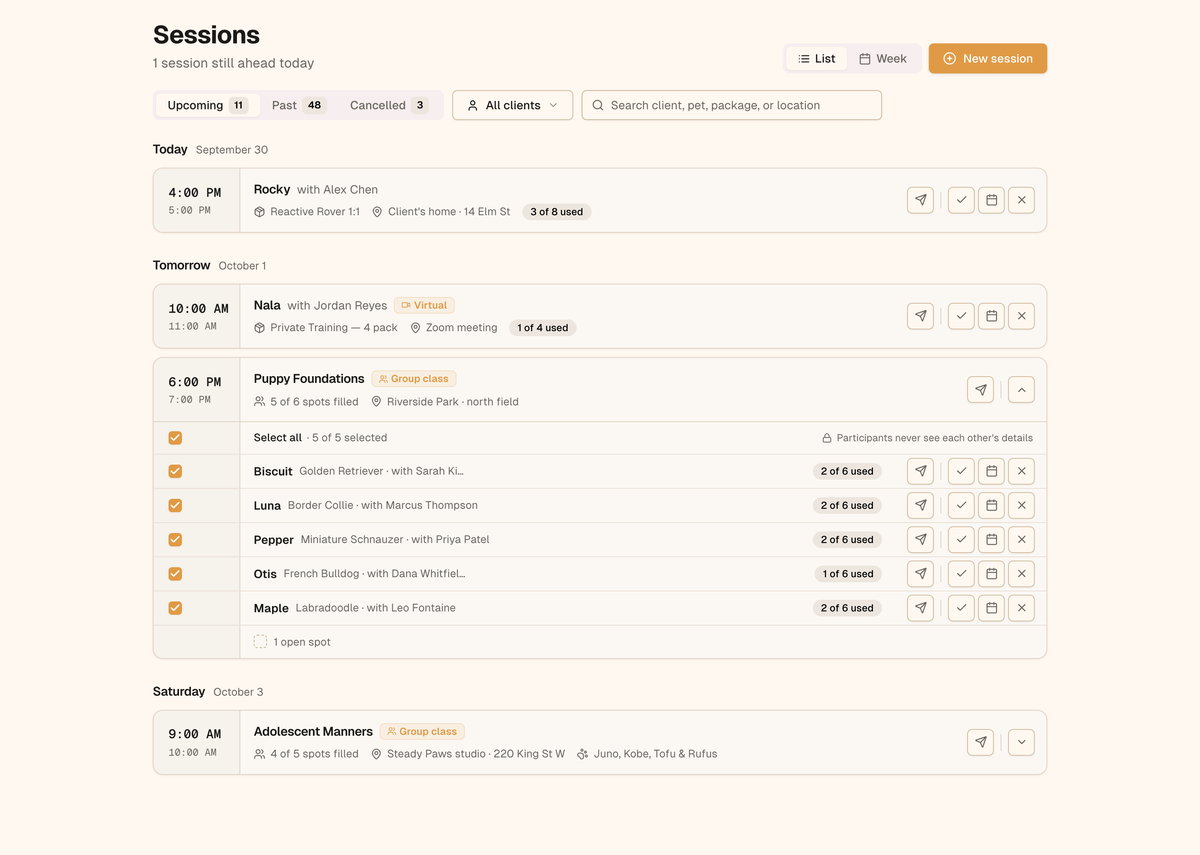
Every upcoming session has a **send** button (the paper-plane icon) on the right of its card.
### A private session
Click the send button on the session card to message that client. The message opens with the session already attached, so the **session time** and **location** fields fill in automatically.
### A group class
A group class card has its own send button:
* Click it on the **closed** card to message **every participant** in the class
* **Expand** the class to tick only some participants — the button then reads **Message 3 selected**
* Each participant row also has its own send button, to message just that one client
**Rain-out? Message the whole class in one go.**
Open the class, pick the **Class rescheduled** template, and send. Every family gets a personal email with their own dog's name and the class time filled in. See [Message Templates](/guides/messaging/message-templates).
## Messaging From the Clients Page
1. Go to **Clients** and make sure you're in **List** view
2. Click **Message clients**, or tick the checkbox next to any client
3. Tick everyone you want to message — a bar appears at the bottom showing who's selected
4. Click **Message N clients**
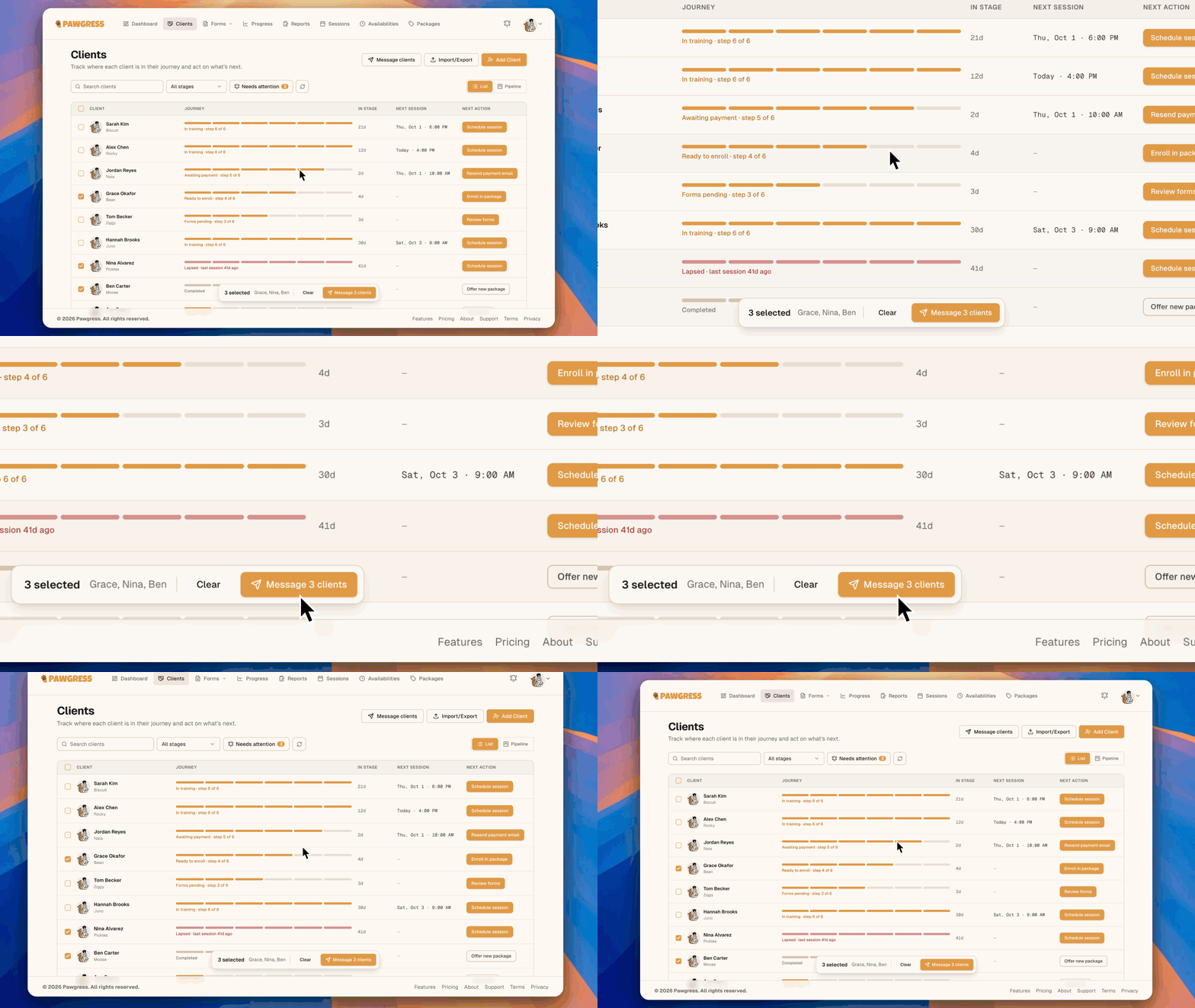
Your selection is kept as you page through the list, and clears when you change the search or stage filter. You can use the filters to narrow the list first — for example, filter to **Completed** to reach clients who've finished their package.
Messages sent from the Clients page aren't tied to a session, so **session time** and **location** aren't available. If your message uses them, Pawgress highlights the fields and asks you to remove them before sending.
## Writing Your Message
The message panel has a **Write** and a **Preview** tab.
### From and To
* **From** shows the email account your message sends from. Click **Change** to switch accounts on the Integrations page.
* **To** lists everyone the message is for. Untick anyone you want to leave out.
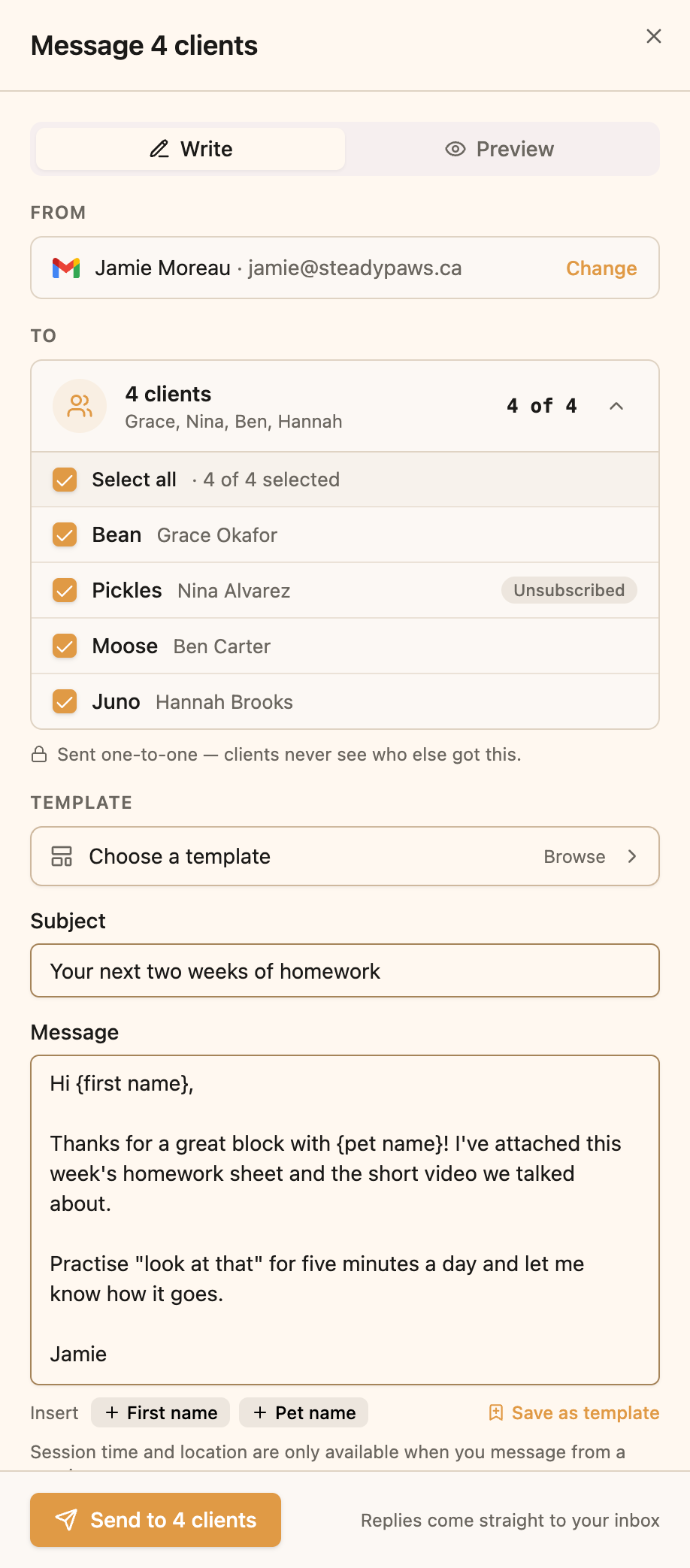 Some recipients may carry a badge:
| Badge | Meaning |
| - | - |
| **No email** | No email address on file — add one on their client page |
| **Unavailable** | They're no longer your client |
| **Unsubscribed** | They opted out of promotional email (service messages still reach them) |
| **No consent** | No consent for promotional email on record |
If a client has more than one dog, a picker next to their name lets you choose which pet `{pet name}` refers to, or **All** of them. When you message from a session, the session's own dog is always used.
### Kind of message
Choose **Service message** for updates about bookings, sessions, or training, or **Promotional message** if any part of it promotes classes, packages, or offers. Service is the default. See [Service vs. Promotional Messages](/guides/messaging/promotional-messages) for how to choose and who can receive promotions.
### Subject and message
Write your subject and message as plain text. Line breaks and blank lines are kept, and web links you type become clickable.
To start from a saved message, click **Choose a template** or **Browse**. See [Message Templates](/guides/messaging/message-templates).
### Personalize with fields
Click **Insert** to add a field that fills in for each recipient:
| Field | Fills in with |
| - | - |
| `{first name}` | The client's first name |
| `{pet name}` | Their dog's name |
| `{session time}` | The session's date and time *(Sessions page only)* |
| `{location}` | The session's location *(Sessions page only)* |
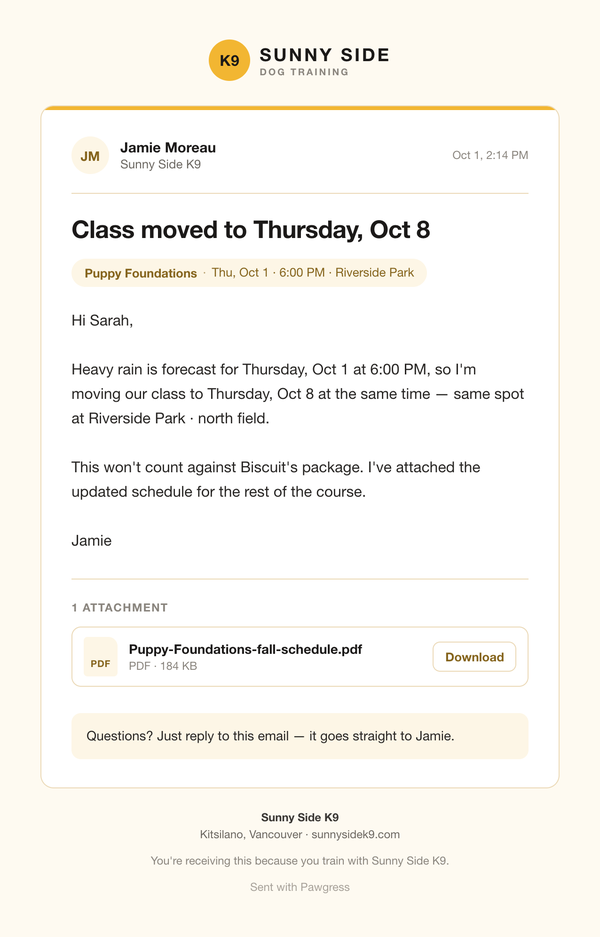
So *"Hi `{first name}`, please bring a towel for `{pet name}`"* reaches Sarah as *"Hi Sarah, please bring a towel for Biscuit."*
### Attachments
Drop files onto the **Attachments** area, click **browse**, or click **add a link**.
* **Files**: PDFs, images (JPEG, PNG, WebP), and Word documents (.docx) — up to **10 MB each** and **16 MB per message**
* **Links**: up to 10, such as a YouTube video. Links show as cards in the email; videos get a play button.
Images appear right inside the email. Documents are attached so clients can download them.
## Previewing Before You Send
Click the **Preview** tab to see exactly what your client will receive, with every field filled in. If you're messaging several people, use the arrows to step through each recipient's version.
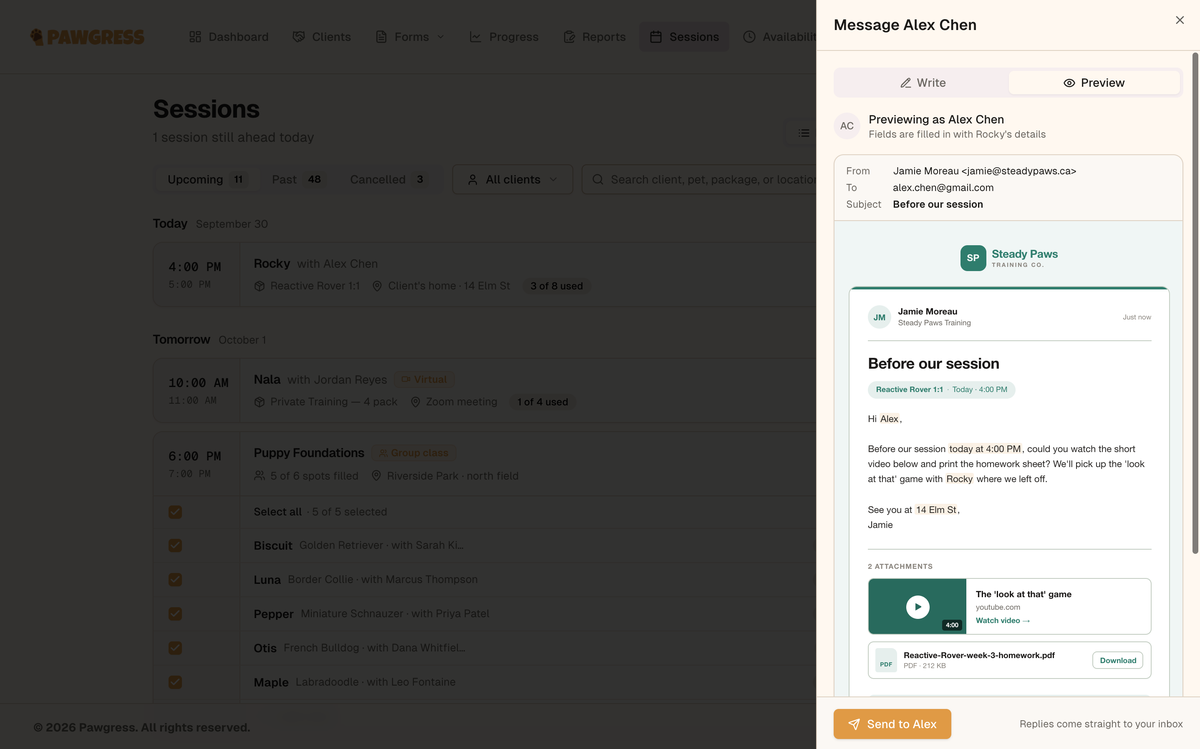
The filled-in fields are highlighted in the preview so you can check them at a glance — the highlight doesn't appear in the delivered email.
## Sending
Click **Send to Alex** (or **Send to 5 clients**). If some recipients can't receive this kind of message, the button tells you — for example **Send to 4 of 5**.
Large sends go out in the background. You can close the panel; Pawgress lets you know when it's done:
* **Message sent** — everyone got it
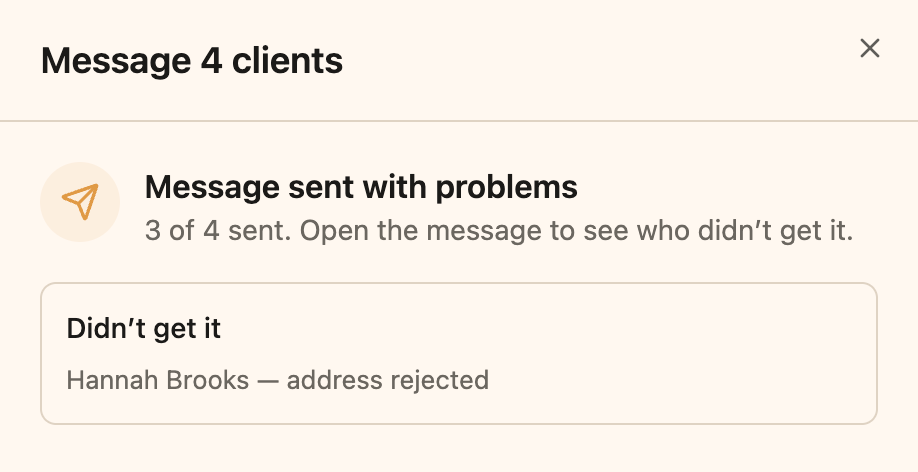
* **Message sent with problems** — open the message to see who didn't get it and why
* **Sending paused** — your email provider asked Pawgress to slow down (it resumes on its own in a few minutes), or your email account needs reconnecting
Some recipients may carry a badge:
| Badge | Meaning |
| - | - |
| **No email** | No email address on file — add one on their client page |
| **Unavailable** | They're no longer your client |
| **Unsubscribed** | They opted out of promotional email (service messages still reach them) |
| **No consent** | No consent for promotional email on record |
If a client has more than one dog, a picker next to their name lets you choose which pet `{pet name}` refers to, or **All** of them. When you message from a session, the session's own dog is always used.
### Kind of message
Choose **Service message** for updates about bookings, sessions, or training, or **Promotional message** if any part of it promotes classes, packages, or offers. Service is the default. See [Service vs. Promotional Messages](/guides/messaging/promotional-messages) for how to choose and who can receive promotions.
### Subject and message
Write your subject and message as plain text. Line breaks and blank lines are kept, and web links you type become clickable.
To start from a saved message, click **Choose a template** or **Browse**. See [Message Templates](/guides/messaging/message-templates).
### Personalize with fields
Click **Insert** to add a field that fills in for each recipient:
| Field | Fills in with |
| - | - |
| `{first name}` | The client's first name |
| `{pet name}` | Their dog's name |
| `{session time}` | The session's date and time *(Sessions page only)* |
| `{location}` | The session's location *(Sessions page only)* |
So *"Hi `{first name}`, please bring a towel for `{pet name}`"* reaches Sarah as *"Hi Sarah, please bring a towel for Biscuit."*
### Attachments
Drop files onto the **Attachments** area, click **browse**, or click **add a link**.
* **Files**: PDFs, images (JPEG, PNG, WebP), and Word documents (.docx) — up to **10 MB each** and **16 MB per message**
* **Links**: up to 10, such as a YouTube video. Links show as cards in the email; videos get a play button.
Images appear right inside the email. Documents are attached so clients can download them.
## Previewing Before You Send
Click the **Preview** tab to see exactly what your client will receive, with every field filled in. If you're messaging several people, use the arrows to step through each recipient's version.

The filled-in fields are highlighted in the preview so you can check them at a glance — the highlight doesn't appear in the delivered email.
## Sending
Click **Send to Alex** (or **Send to 5 clients**). If some recipients can't receive this kind of message, the button tells you — for example **Send to 4 of 5**.
Large sends go out in the background. You can close the panel; Pawgress lets you know when it's done:
* **Message sent** — everyone got it
* **Message sent with problems** — open the message to see who didn't get it and why
* **Sending paused** — your email provider asked Pawgress to slow down (it resumes on its own in a few minutes), or your email account needs reconnecting
 With Gmail, sent messages also show up in your **Sent** folder, just like any email you send yourself. Over SMTP, whether a copy is kept in Sent depends on your provider — many don't keep one.
### "We can't confirm these went out"
Occasionally a connection drops at the exact moment an email is handed to your provider, and Pawgress can't tell whether it was sent. Those recipients are listed separately. **Check your Sent folder first** (or ask the client) — if the email went out, there's nothing to do. Only click **Send again anyway** if it isn't, or the client may get two copies.
## Replies
Replies go straight to your own inbox — Pawgress never sees them. Every email ends with a note telling your client *"Questions? Just reply to this email — it goes straight to Jamie"* (with your first name).
## Limits
| Limit | Amount |
| - | - |
| Recipients per message | 100 |
| Emails per day | 300 (rolling 24 hours, counted per recipient) |
| Attachment size | 10 MB per file, 16 MB per message |
| Files per message | 10 |
| Links per message | 10 |
These keep your own email account in good standing — Gmail and most providers slow down or block accounts that send in bulk.
## Troubleshooting
### The send button is greyed out
Check that:
* At least one recipient is ticked and can receive the message
* The subject and message aren't empty
* There are no highlighted session fields on a message from the Clients page
* For a service message flagged as possibly promotional, you've ticked **This message has no promotional content** or switched to **Promotional message**
### "Messaging is paused on your account"
Messaging is paused automatically if many of your messages are rejected by email providers in a short time. Contact support to restore it.
### Additional Help
* Email: [support@pawgress.ca](mailto:support@pawgress.ca)
* In-app: Click **Support** in the navigation
## Next Steps
* [Save messages you send often as templates](/guides/messaging/message-templates)
* [Learn when a message counts as promotional](/guides/messaging/promotional-messages)
This documentation is built and hosted on [Mintlify](https://mintlify.com), a developer documentation platform.
With Gmail, sent messages also show up in your **Sent** folder, just like any email you send yourself. Over SMTP, whether a copy is kept in Sent depends on your provider — many don't keep one.

### "We can't confirm these went out"
Occasionally a connection drops at the exact moment an email is handed to your provider, and Pawgress can't tell whether it was sent. Those recipients are listed separately. **Check your Sent folder first** (or ask the client) — if the email went out, there's nothing to do. Only click **Send again anyway** if it isn't, or the client may get two copies.
## Replies
Replies go straight to your own inbox — Pawgress never sees them. Every email ends with a note telling your client *"Questions? Just reply to this email — it goes straight to Jamie"* (with your first name).
## Limits
| Limit | Amount |
| - | - |
| Recipients per message | 100 |
| Emails per day | 300 (rolling 24 hours, counted per recipient) |
| Attachment size | 10 MB per file, 16 MB per message |
| Files per message | 10 |
| Links per message | 10 |
These keep your own email account in good standing — Gmail and most providers slow down or block accounts that send in bulk.
## Troubleshooting
### The send button is greyed out
Check that:
* At least one recipient is ticked and can receive the message
* The subject and message aren't empty
* There are no highlighted session fields on a message from the Clients page
* For a service message flagged as possibly promotional, you've ticked **This message has no promotional content** or switched to **Promotional message**
### "Messaging is paused on your account"
Messaging is paused automatically if many of your messages are rejected by email providers in a short time. Contact support to restore it.
### Additional Help
* Email: [support@pawgress.ca](mailto:support@pawgress.ca)
* In-app: Click **Support** in the navigation
## Next Steps
* [Save messages you send often as templates](/guides/messaging/message-templates)
* [Learn when a message counts as promotional](/guides/messaging/promotional-messages)
This documentation is built and hosted on [Mintlify](https://mintlify.com), a developer documentation platform.