

How Client Messaging Works
Pawgress lets you email your clients straight from the Sessions and Clients pages: a schedule change for a whole group class, homework before a private session, or an announcement to a handful of past clients. Every message goes out from your own email address, not from Pawgress. Clients see your name, and when they hit reply, the answer lands in your normal inbox.Pawgress only sends what you writeConnecting your email gives Pawgress permission to send the messages you compose. It never reads your inbox, and it never sends anything on its own.
- Connect an email account — Gmail / Google Workspace, or any other provider over SMTP
- Add your business details — your business name and mailing address, which anti-spam law requires in every client email
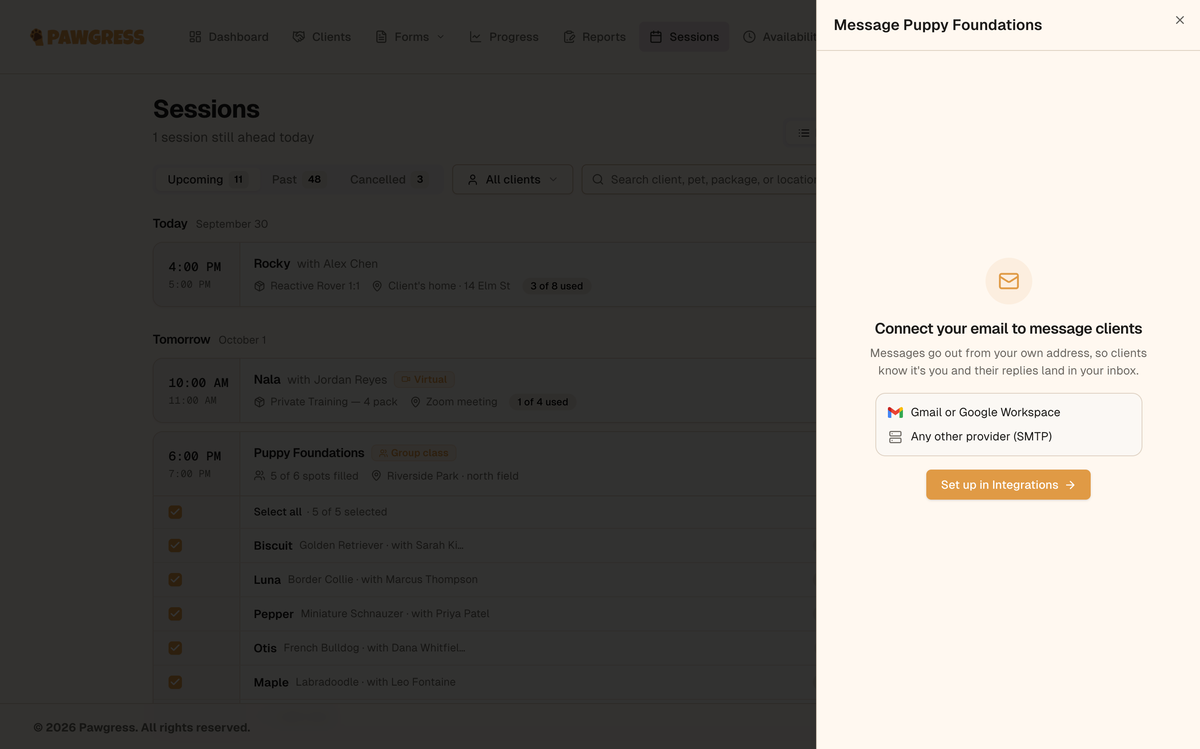
Messaging asks you to connect an email account the first time
Option 1: Gmail or Google Workspace
Use this if your business email is a Gmail address or runs on Google Workspace (for exampleyou@yourbusiness.com hosted by Google).
Step 1: Open Integrations
Click your avatar in the top-right corner and select Integrations, then find the Email section.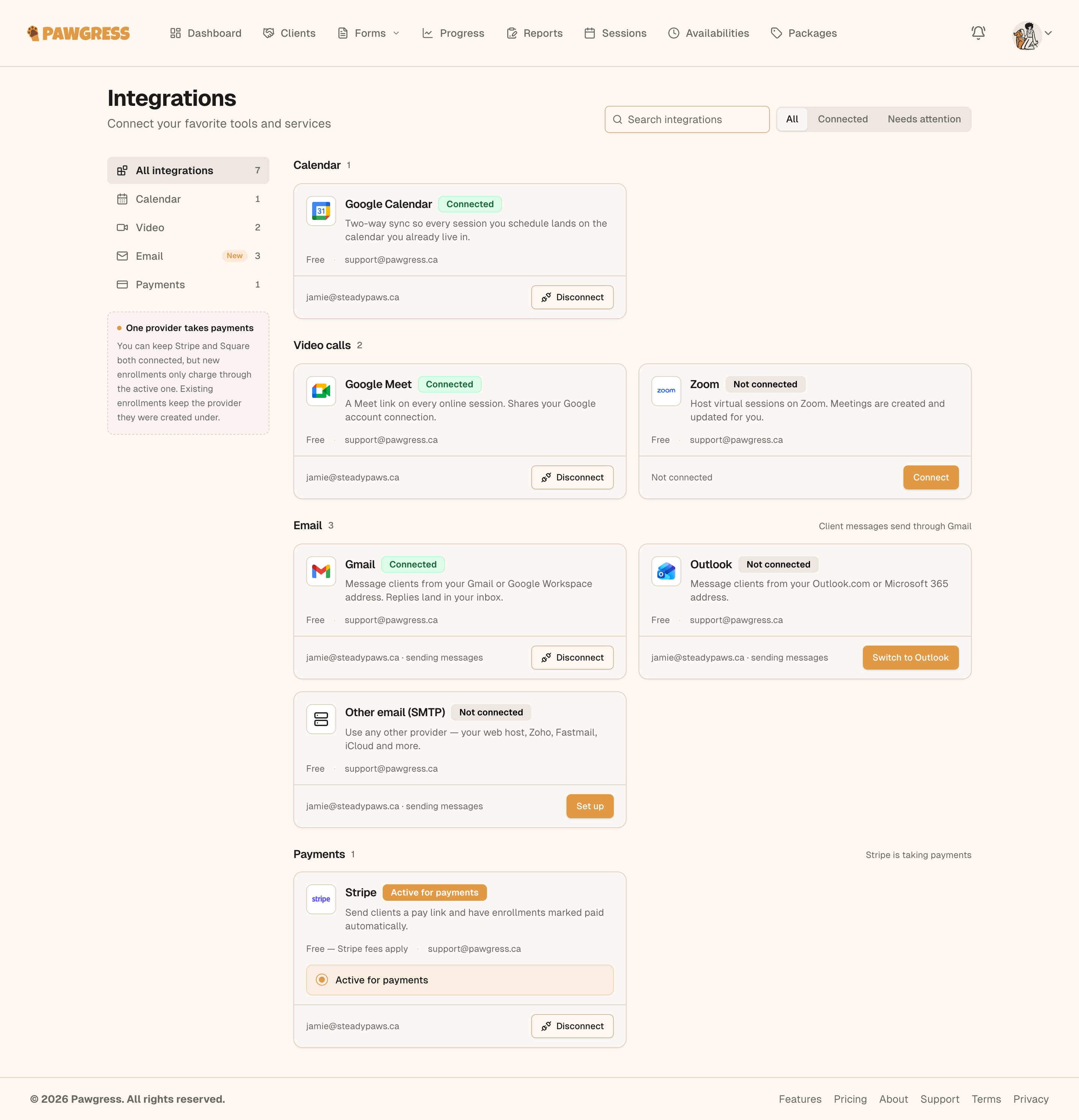
The Email section of Integrations, with the Gmail and SMTP cards
Step 2: Connect Gmail
- On the Gmail card, click Connect
- Tick the box confirming you’ll only message your own clients, and that announcements and promotions need their consent
- Sign in to Google and pick the account you want to send from
Step 3: Allow sending
Google asks you to allow Pawgress to send email on your behalf. Leave that permission ticked — without it Pawgress can’t send, and you’ll see “Pawgress needs permission to send email.” Just try again and keep the box ticked. When you’re back in Pawgress you’ll see Gmail connected, and client messages now send from your Gmail address.Already use Google Calendar?Gmail and Google Calendar are connected separately. Disconnecting one never breaks the other — if you disconnect Gmail, Calendar keeps syncing your sessions, and vice versa.
Option 2: Any Other Provider (SMTP)
Use Other email (SMTP) for everything else: your web host’s email, Microsoft 365, Zoho, Fastmail, iCloud, and so on.Step 1: Find your SMTP settings
Look in your email provider’s help pages or settings for SMTP or outgoing mail. You’ll need:Step 2: Enter your details
- Go to Integrations → Email and click Set up on the Other email (SMTP) card
- Fill in your From name (what clients see, e.g. Jamie Moreau) and From address
- Enter the server, port, security, username, and password
- Tick the box confirming you’ll only message your own clients
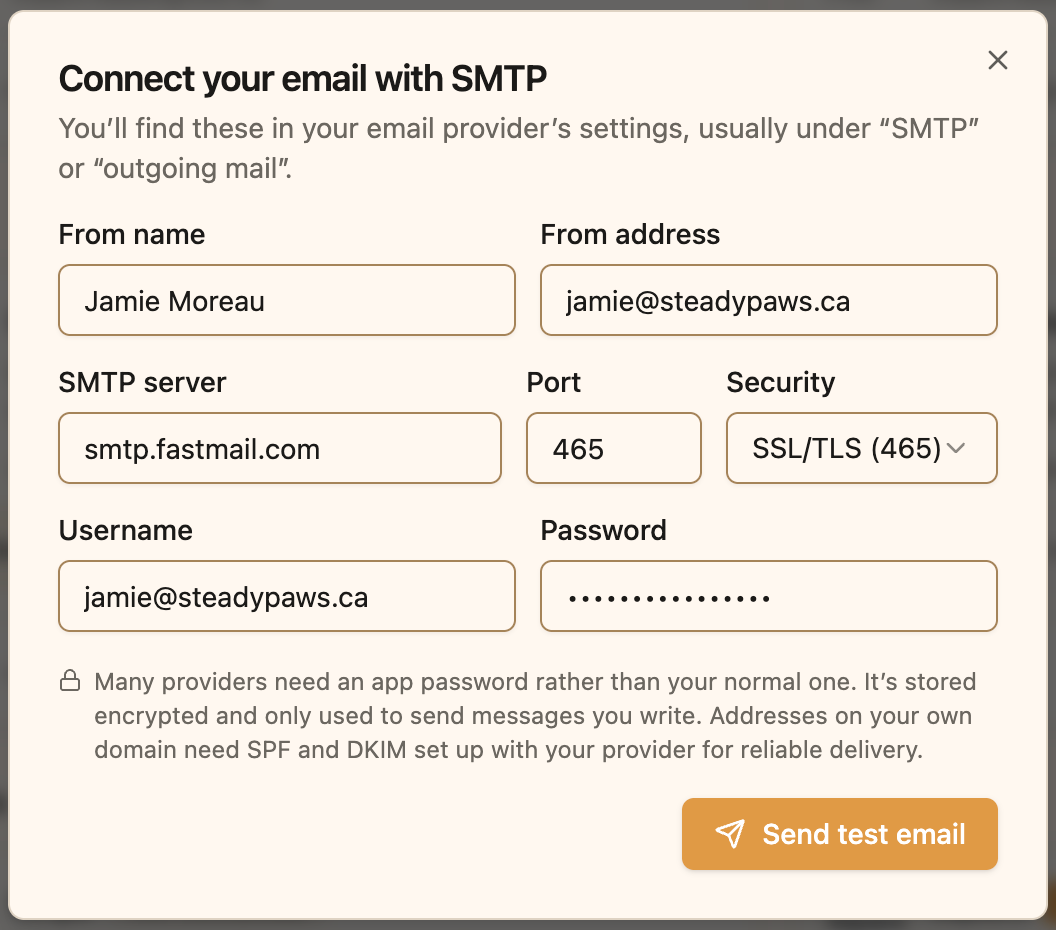
Enter the SMTP settings from your email provider
Step 3: Verify the sender
- Click Send test email. Pawgress connects to your server and sends a 6-digit code to your From address — through your own server
- Check your inbox, then enter the code and click Verify and connect
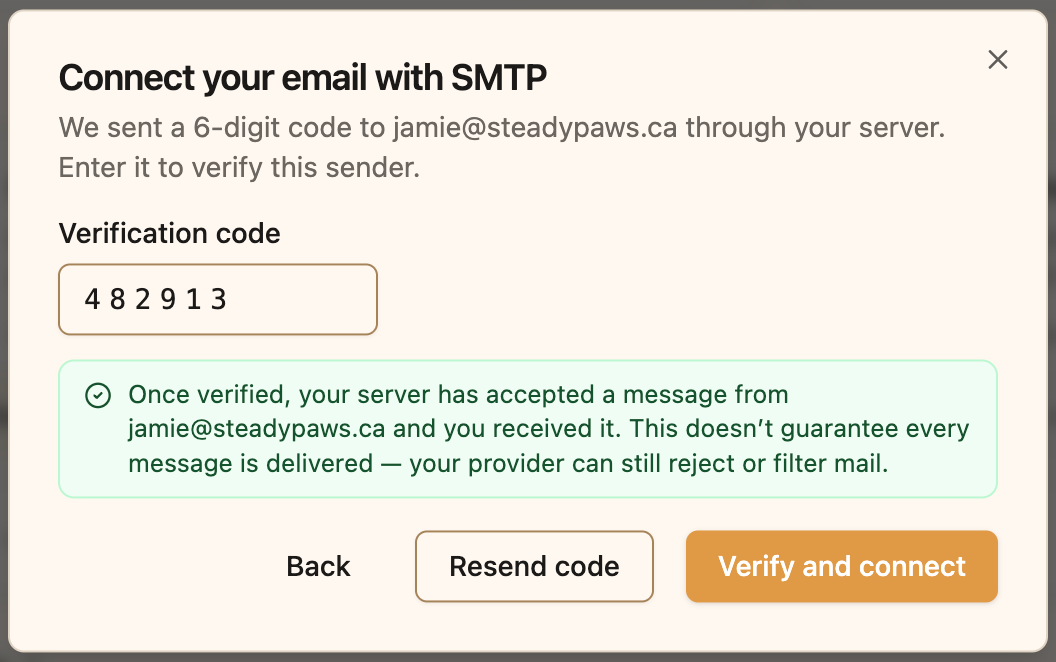
Enter the 6-digit code sent through your own server
Changed a setting? Verify again. If you edit any SMTP setting later (server, port, password, From address…), Pawgress asks you to send a new test before it sends anything else.
Choosing Which Account Sends
You can connect both Gmail and SMTP. Only one sends your messages at a time — the Email section says which (“Client messages send through …”). To switch, click Use for sending messages on the other card.Adding Your Business Details
The first time you send a message, Pawgress asks for your business details:- Business name
- Mailing address — street, city, province/state, postal code, country
- Phone and website (optional)
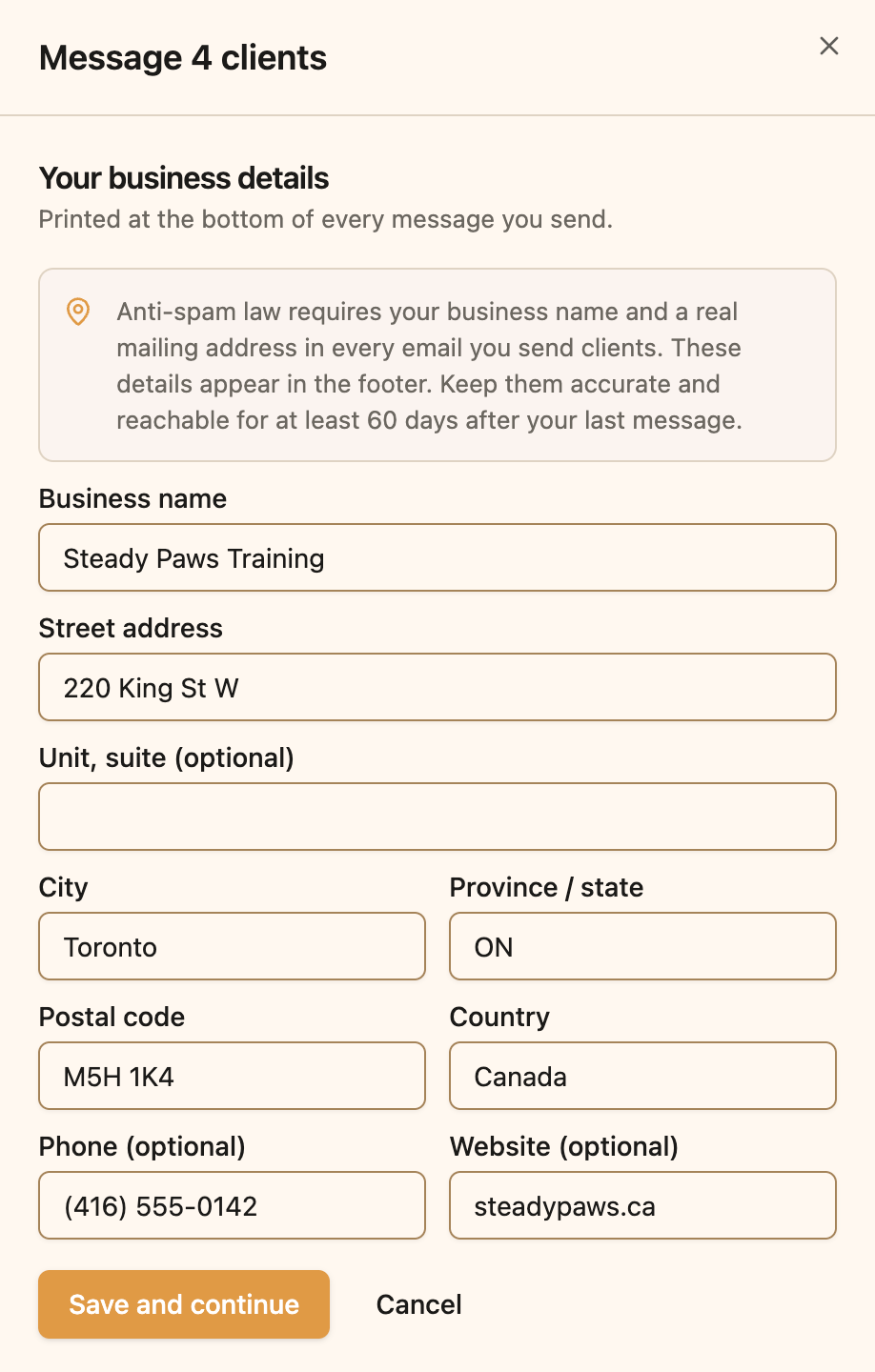
Your business details appear in the footer of every message
Make Your Emails Look Like Your Business
With Branding turned on (a Pro feature), messages use your logo and brand color. Without branding, they use Pawgress’s warm cream-and-amber colors with your business name at the top.Troubleshooting
Gmail card says “Reconnect”
Google stopped accepting Pawgress’s access, for example because you changed your Google password or removed Pawgress from your Google account. Click Reconnect on the Gmail card to sign in again.SMTP card says “Set up again”
Your SMTP settings changed or your saved password can no longer be used. Click Set up again, re-enter your details, and verify with a new test email.SMTP test email never arrives
- Double-check the server, port, and security setting against your provider’s help page
- Try an app password instead of your normal password
- Check your spam folder
- If you see “We couldn’t reach your server,” the server name or port is wrong. Pawgress only connects on ports 465, 587, and 2525
Messages to clients land in spam
If you send from your own domain (e.g.you@yourbusiness.com), make sure SPF and DKIM are set up with your email provider. Your provider’s help pages explain how.
Additional Help
Contact our support team:- Email: support@pawgress.ca
- In-app: Click Support in the navigation