

What is the Zoom Integration?
Pawgress’s Zoom integration allows you to automatically create and manage Zoom meetings for your virtual training sessions. When you schedule a virtual session in Pawgress, a Zoom meeting is created automatically, and the meeting details are shared with your client. This streamlines the process of conducting online training sessions.Pro FeatureZoom integration is a Pro feature in Pawgress, allowing you to:
- Connect your Zoom account to Pawgress
- Automatically create Zoom meetings for virtual sessions
- Include Zoom meeting links in client notifications
- Manage virtual sessions seamlessly alongside in-person training
Setting Up Zoom Integration
Step 1: Navigate to the Integrations Page
Click your avatar in the top-right corner and select Integrations.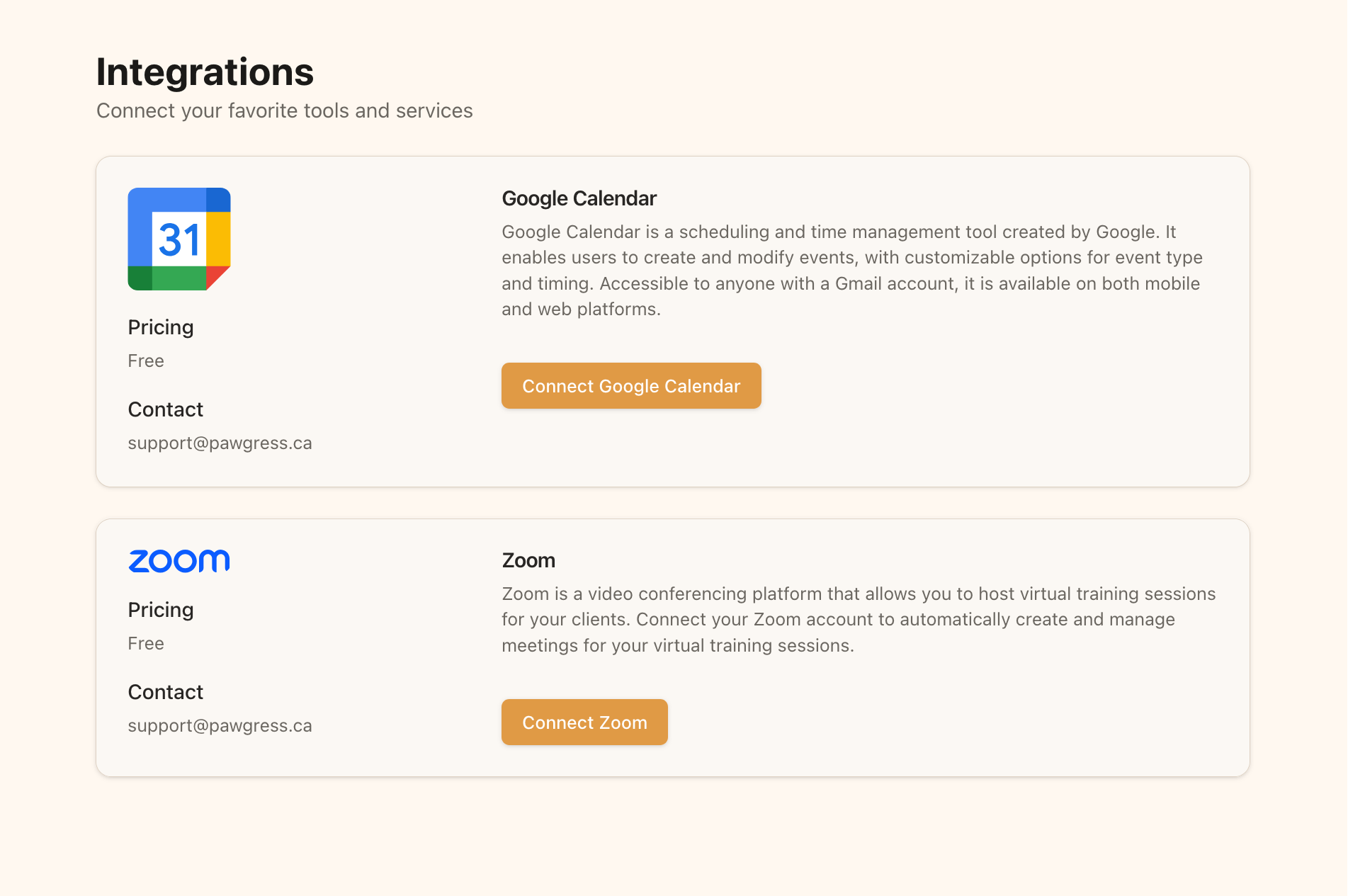
Step 2: Connect Zoom
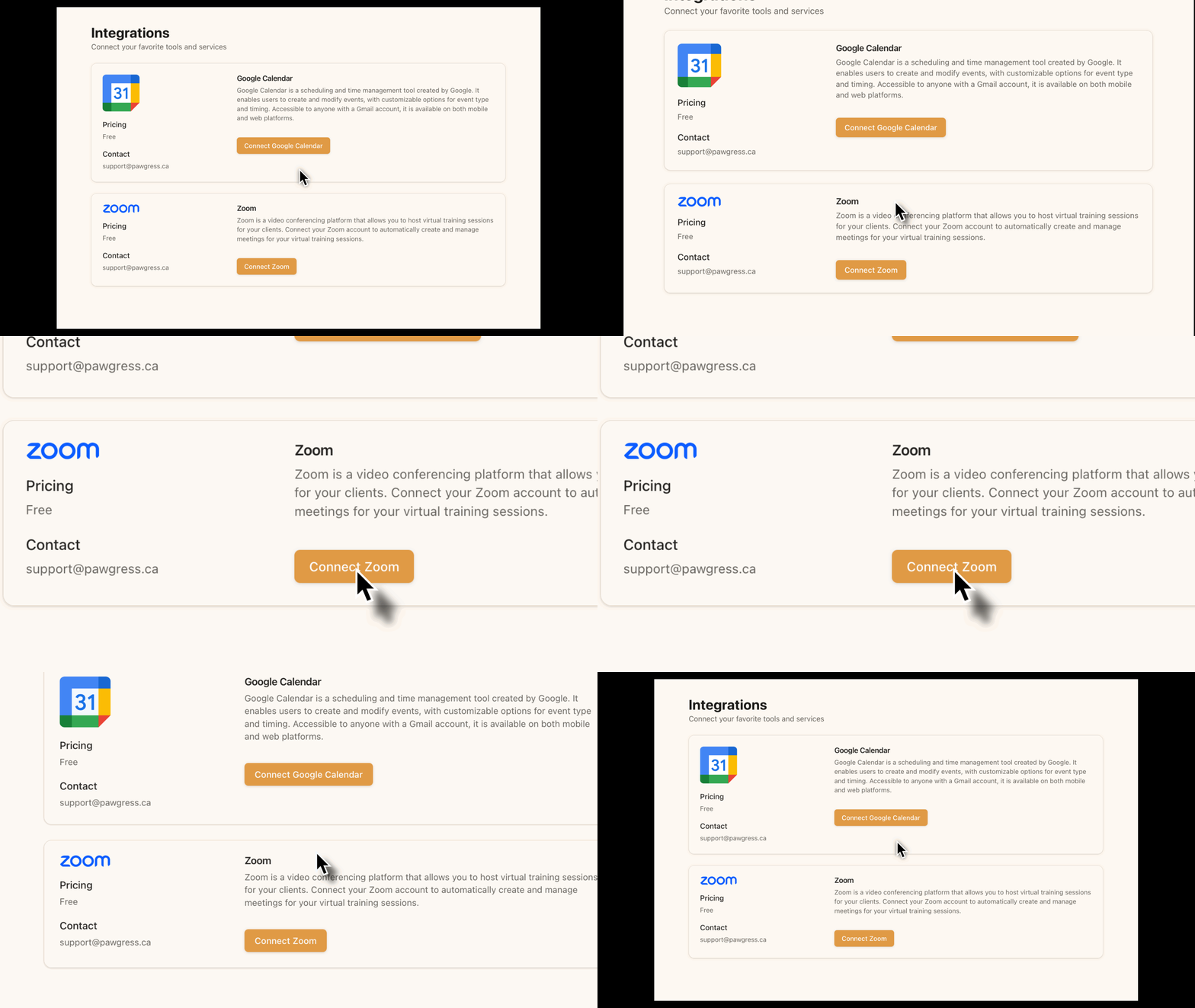
On the Integrations page:- Find the Zoom section
- Click the “Connect Zoom” button
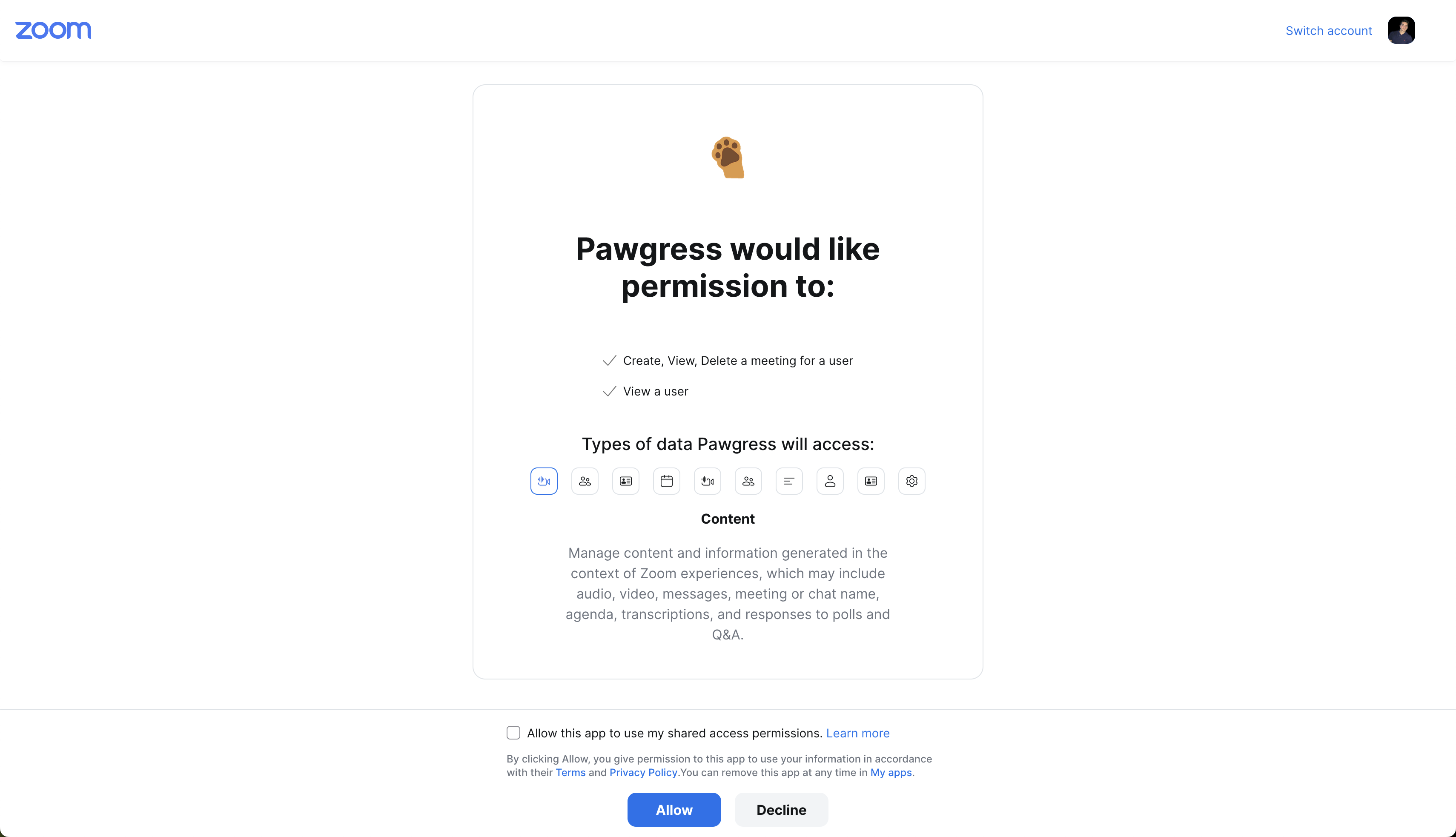
- You’ll be redirected to Zoom’s authentication page
- Log in to your Zoom account if prompted
- Grant Pawgress permission to access your Zoom account
- You’ll be redirected back to Pawgress once the connection is successful
Step 3: Verify Connection
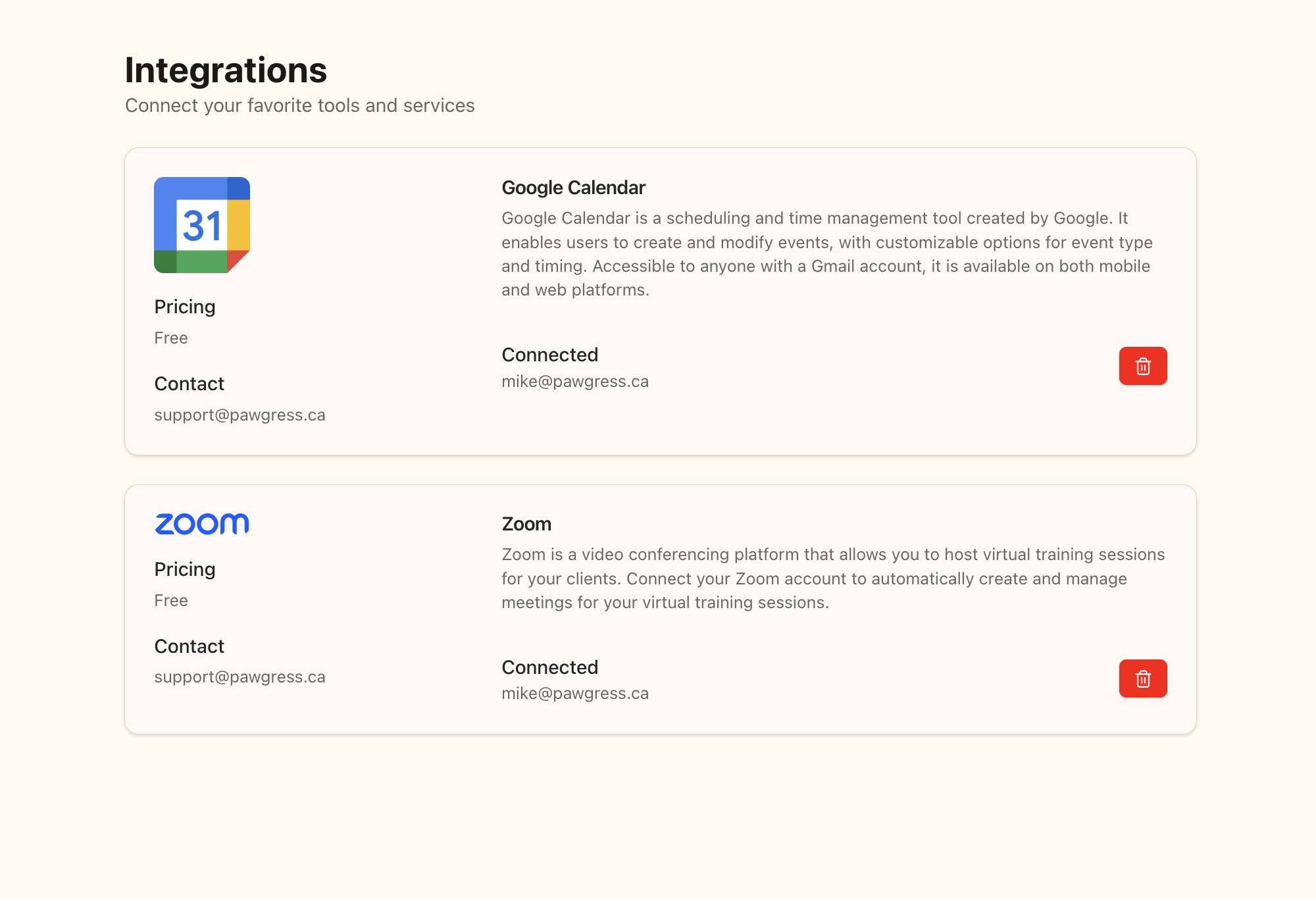
After redirecting back to Pawgress, you should see your Zoom account displayed as connected:- The status will change to “Connected”
- Your Zoom account email will be displayed
- A delete button will appear in case you want to remove the integration later
Creating a Virtual Training Session
Step 1: Navigate to Sessions
Click Sessions in the main navigation.Step 2: Open the Scheduling Drawer
Click New session to open the scheduling drawer.Step 3: Fill in Session Details
Work through the drawer’s sections:- Who — search for and select the client
- Package — pick the client’s enrollment this session counts against
- When — choose the date (or several) and the start time
- Where — select Zoom
- Notes — add anything you want to remember (optional)
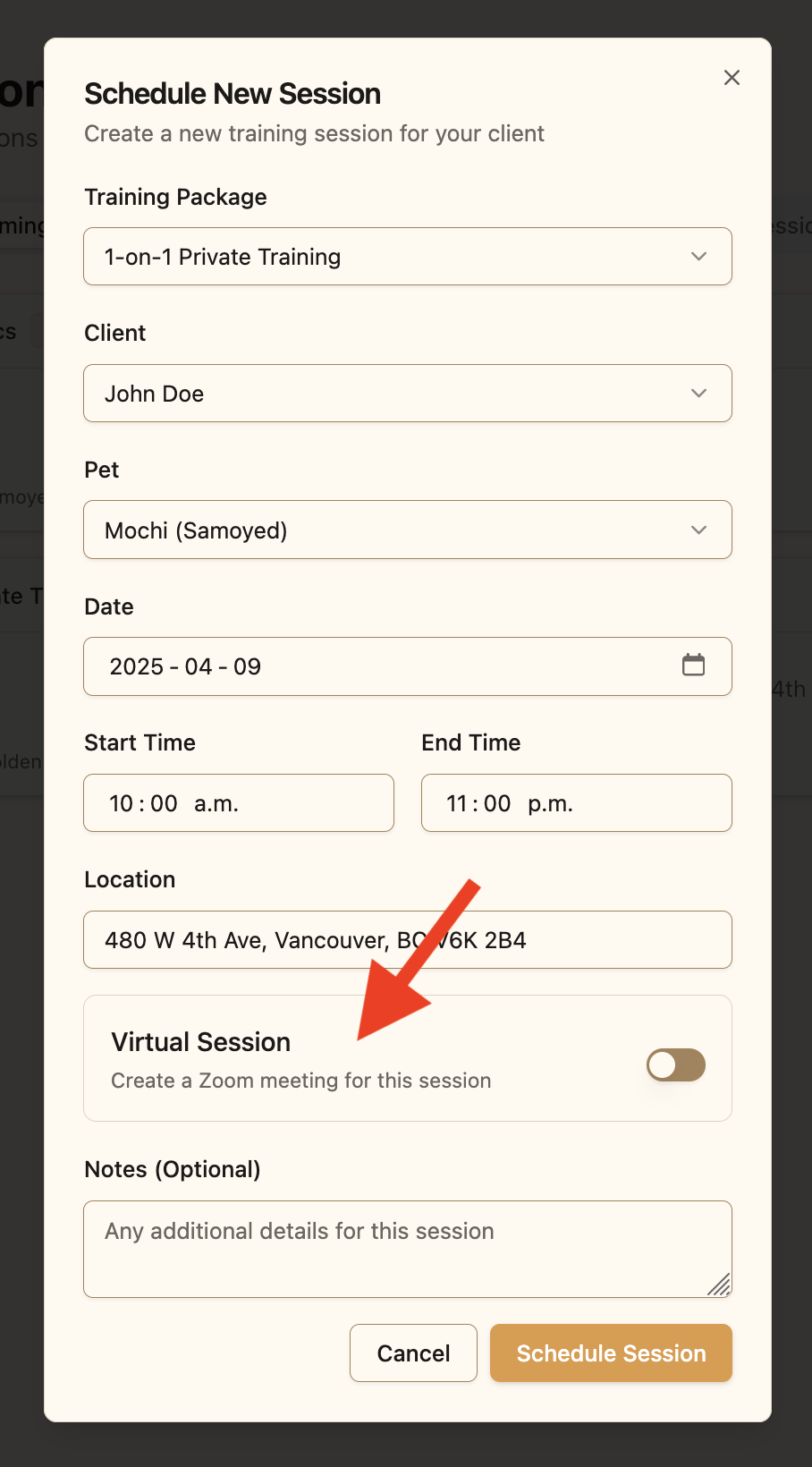
If Zoom is greyed out, your Zoom account isn’t connected — or the connection has expired, in which case the drawer tells you and offers to reconnect.
Step 4: Create the Session
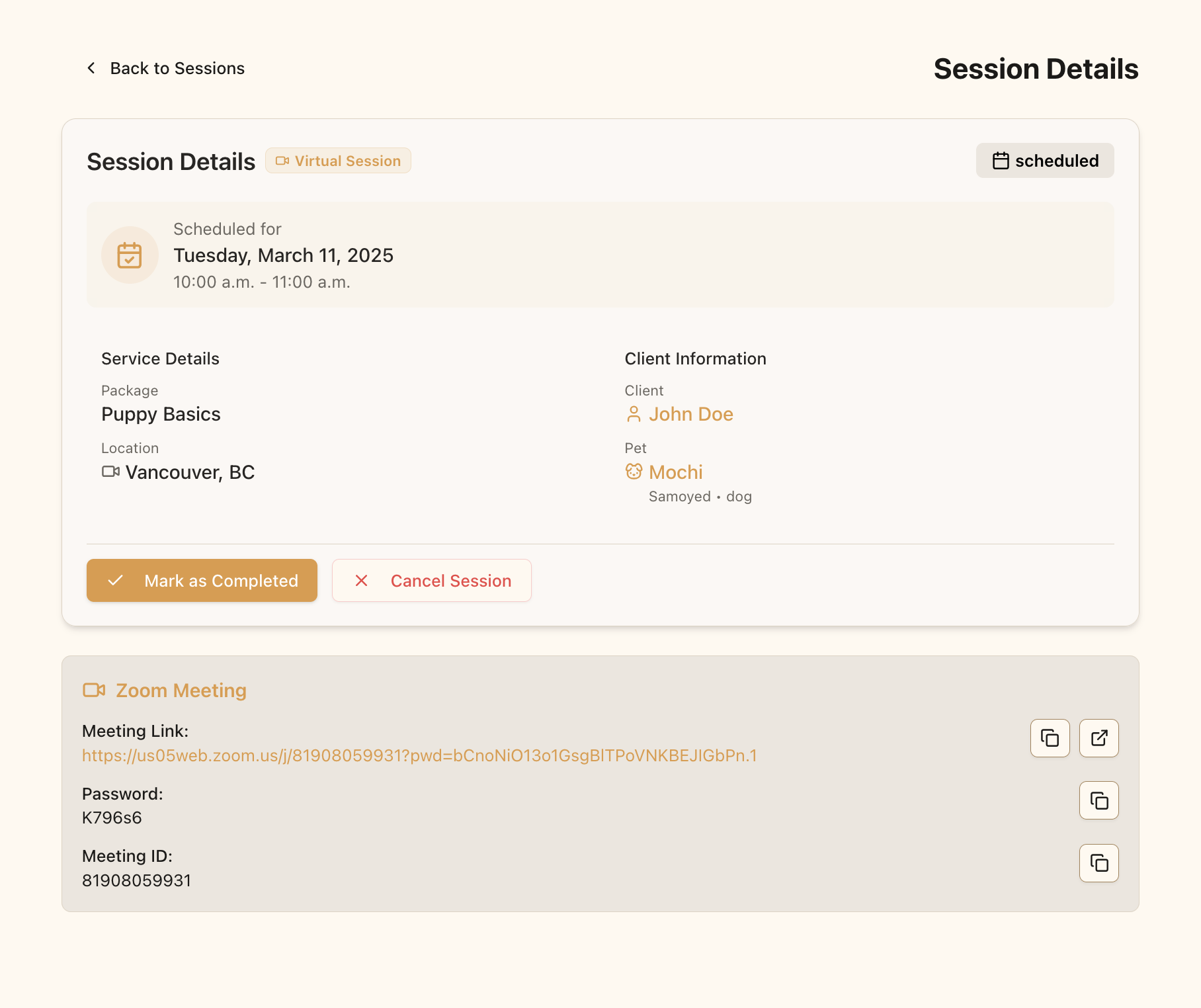
Save the session and Pawgress generates the Zoom meeting.- The meeting is created for the date and time you specified
- The meeting details (link, meeting ID, passcode) are stored in Pawgress
- Both you and your client can access them from the session
Managing Virtual Sessions
Accessing the Zoom Meeting
To access the meeting as a trainer:- Go to the Sessions page
- Find the virtual session in your Upcoming segment
- Click the session to open it
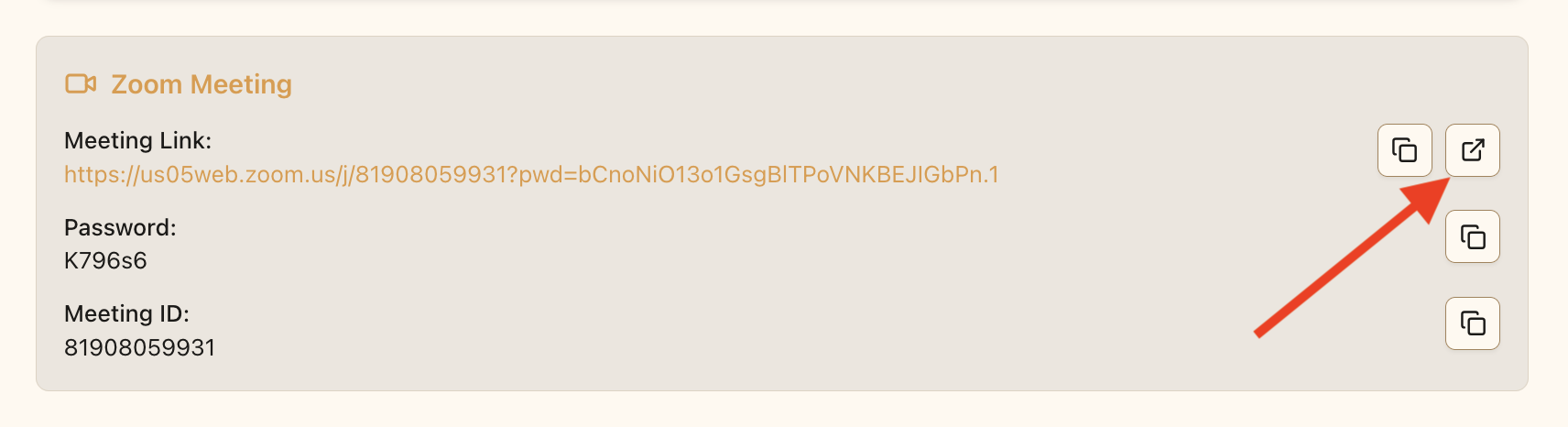
- Click the button to join the Zoom meeting
Confirming Created Zoom Meetings
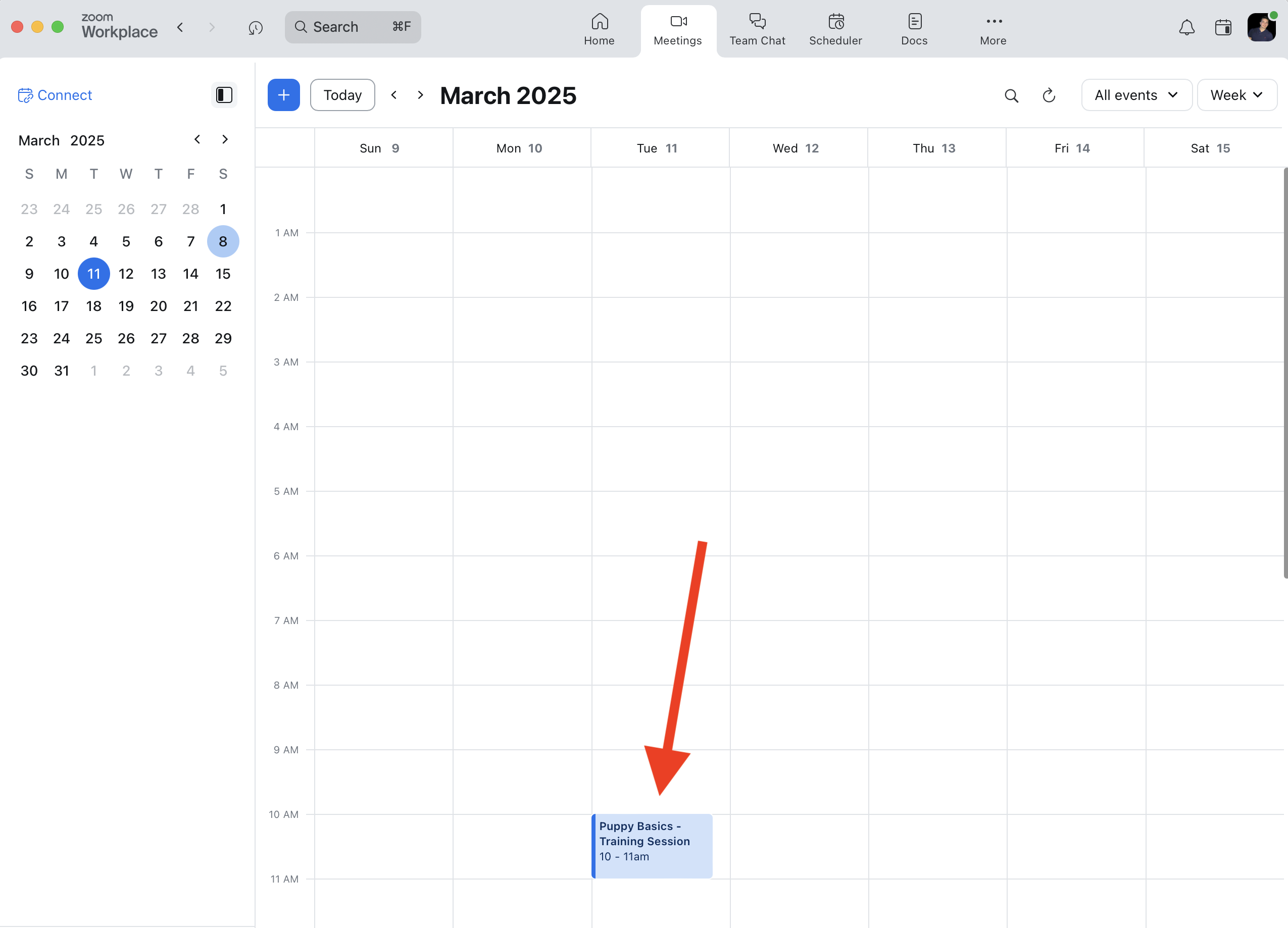
You can verify that the meeting was created in your Zoom account:- Log in to your Zoom account at zoom.us
- Go to the “Meetings” section
- Find the meeting created by Pawgress in your scheduled meetings list
Troubleshooting
Zoom Integration Not Working
If you’re having trouble with the Zoom integration:- Open Integrations from your avatar menu and check that Zoom is connected
- Try disconnecting and reconnecting your Zoom account
- Make sure your Zoom account is active and not in a free trial that has expired
Meeting Not Created
If a Zoom meeting isn’t created when scheduling a virtual session:- Verify the session’s Where is set to Zoom rather than In-person
- Check that your Zoom integration is still connected on the Integrations page
- Ensure your Zoom account has sufficient meeting credits (if using a paid account)