

Getting Started with Clients
Adding clients to your Pawgress account is the first step to managing your dog training business effectively. This guide will walk you through adding and managing your client relationships in the system.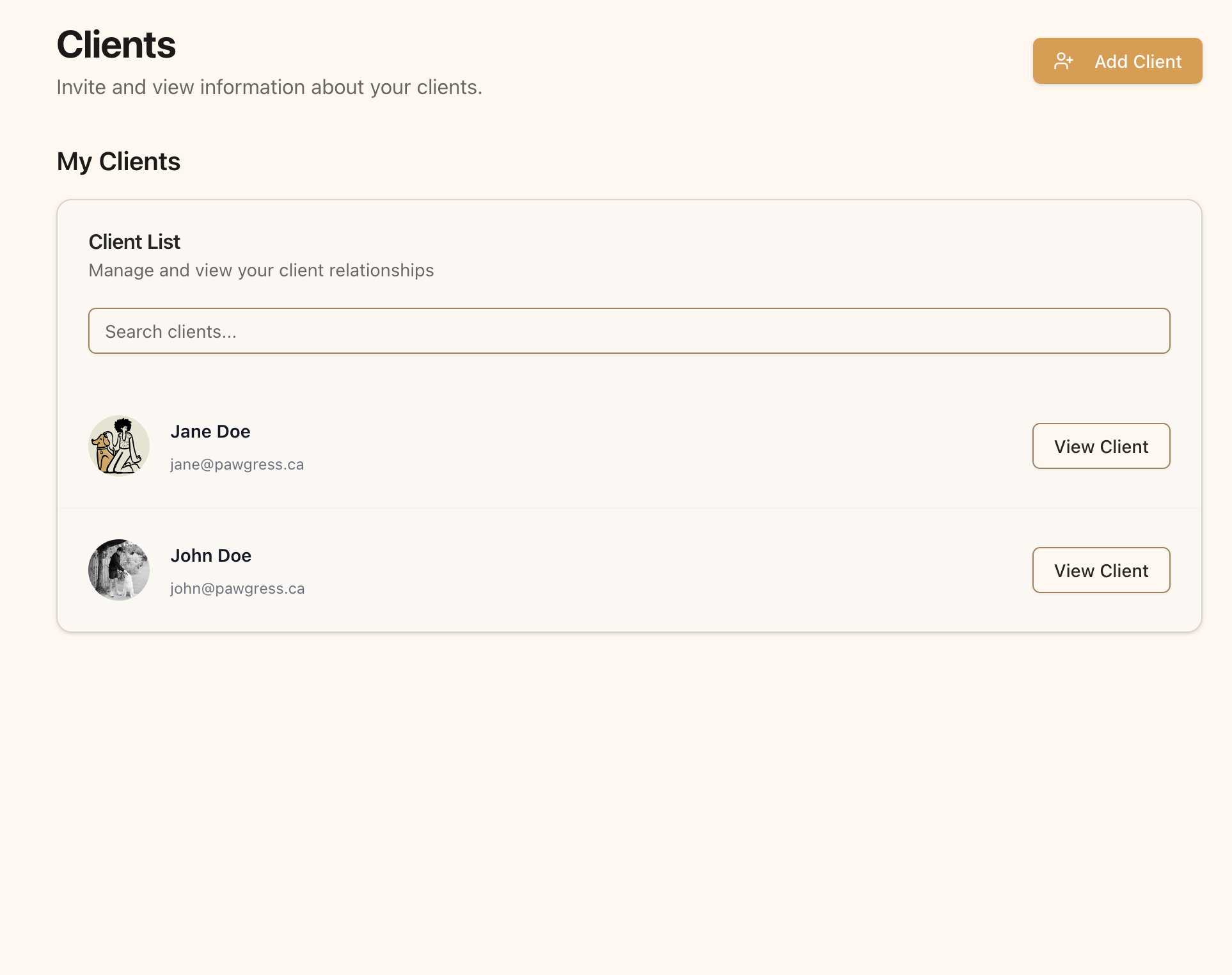
The Clients page is where you’ll manage all your client relationships
Creating Clients
Before you can add pets and schedule training sessions, you’ll need to add clients:Step 1: Navigate to the Clients Page
Click Clients in the main navigation.Step 2: Create a Client
- Locate the “Add Client” button at the top of the page
- Enter your client’s email address, first name, and last name. You can also add their phone number and location now, or fill them in later.
- Click the “Create Client” button
What Happens NextAfter you create a client:
- Your client receives an email invitation to join Pawgress
- They can create their account using the email link
- They’ll appear in your client list
- You’ll then be able to add their pets and schedule training sessions
Viewing Client Details
To see more information about a client:- Click the “View Client” button next to their name in the list
- This will take you to their client profile page
- From there, you can view and manage their enrollments and pets
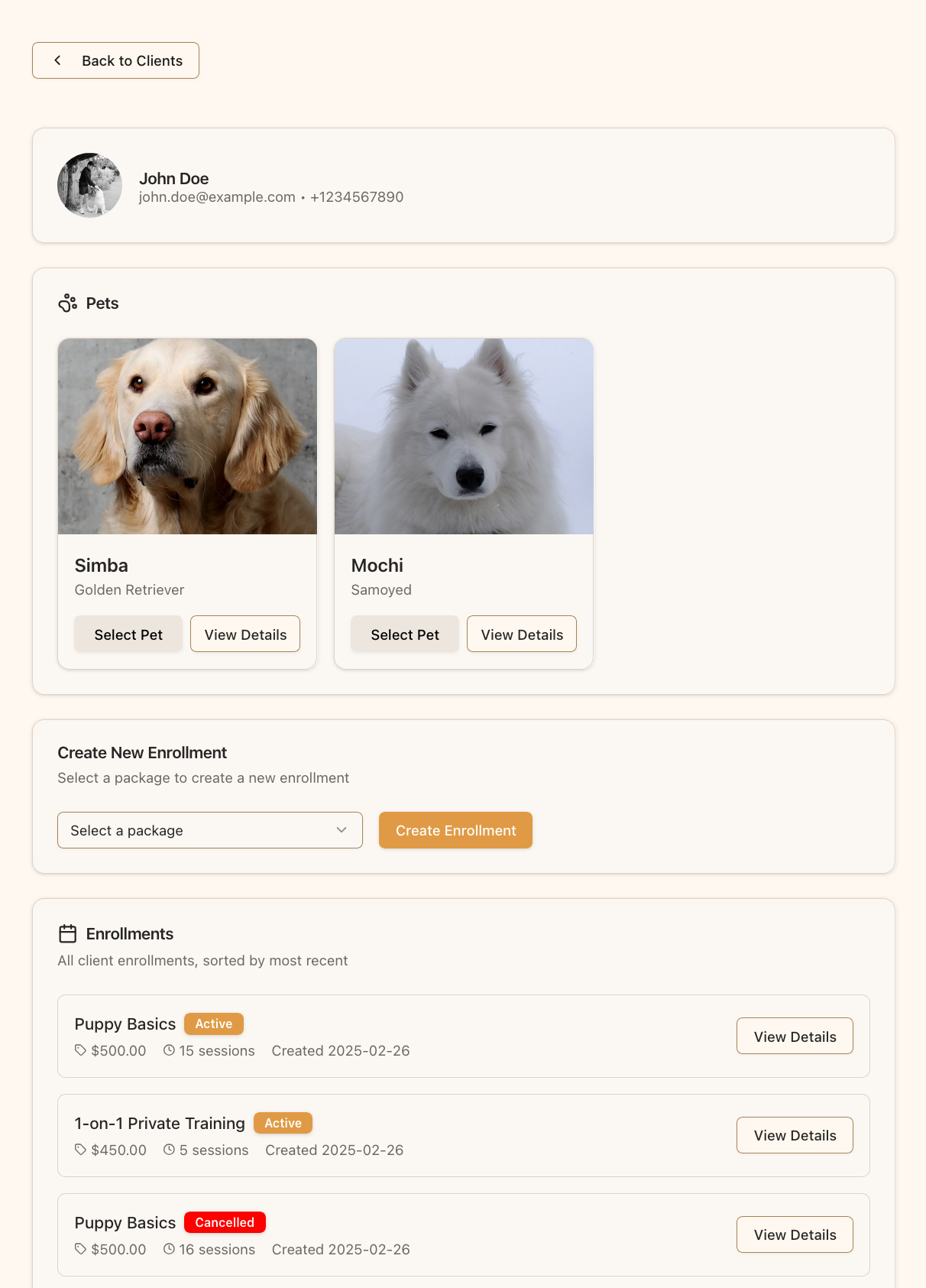
The client details page shows the client’s information, their pets and their enrollments
Searching for Clients
As your client list grows, you can use the search function to find specific clients:- Enter a client’s name or email in the search box at the top of the client list
- The list will filter to show only matching clients
- Clear the search box to see your full client list again
Client PrivacyPawgress takes client privacy seriously. When clients connect with you:
- You’ll only have access to the information they choose to share
- Their pet data is secure and only visible to you and them
- The system maintains appropriate boundaries between trainers and clients
Bulk Import and Export
If you’re moving to Pawgress from another system — or a spreadsheet — you don’t have to add clients one at a time. The Clients page includes bulk import and export.Importing clients
- On the Clients page, open the import and export controls
- Download the template so your columns match what Pawgress expects
- Fill it in with your existing client list
- Upload the file
Exporting clients
Export produces a file of your client list, useful for backups, mail-merge, or moving data into another tool. Exports also run in the background and are downloadable when complete.Import is occasionally paused for maintenance. When that happens the page shows an Import Unavailable notice — export is unaffected.
Next Steps
Once your client has accepted your invitation and appears in your client list, you can:- Send them your intake forms and waivers
- Create training packages to offer to your clients
- Schedule training sessions
- Create training reports to track and document training progress