

Overview
You can email clients from two places in Pawgress:
Each client gets their own copy, addressed to them. Clients never see who else received the message.
Messaging From the Sessions Page
Every upcoming session has a send button (the paper-plane icon) on the right of its card.A private session
Click the send button on the session card to message that client. The message opens with the session already attached, so the session time and location fields fill in automatically.A group class
A group class card has its own send button:- Click it on the closed card to message every participant in the class
- Expand the class to tick only some participants — the button then reads Message 3 selected
- Each participant row also has its own send button, to message just that one client
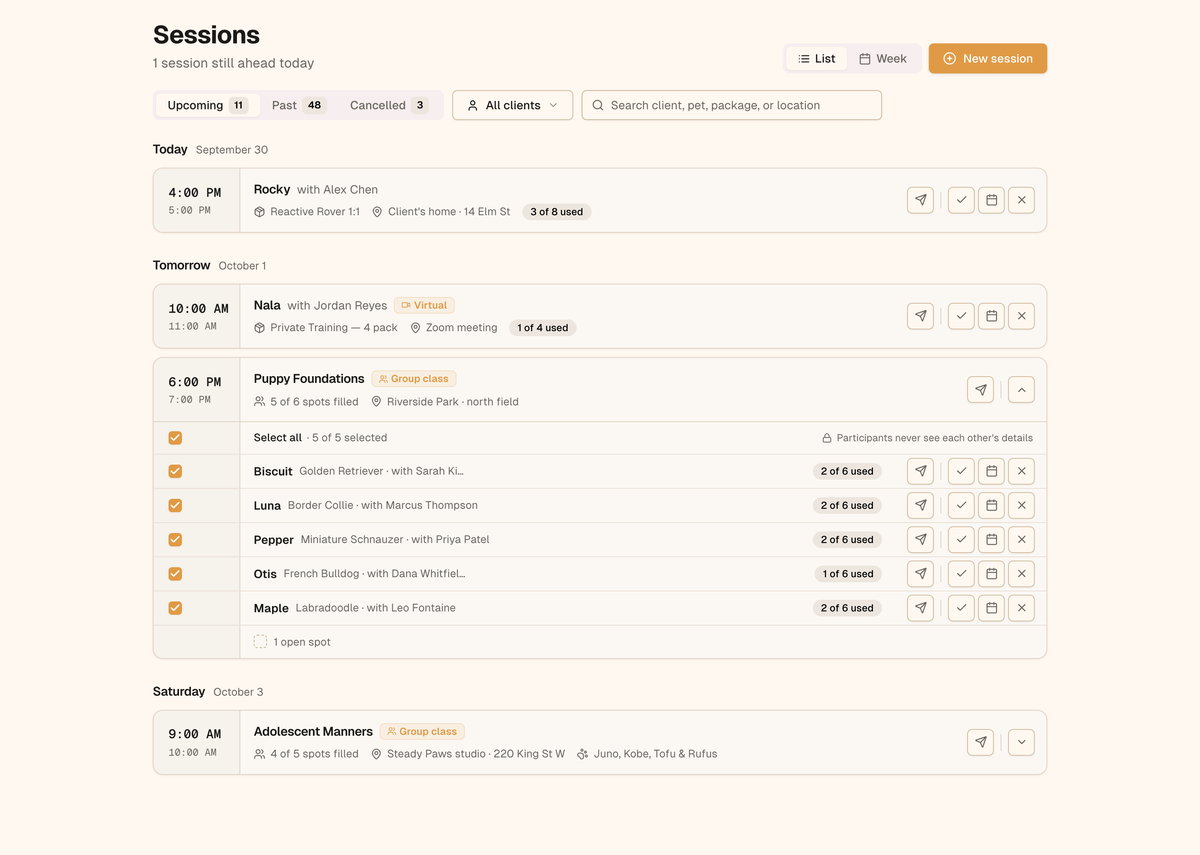
Expand a group class to choose which participants to message
Messaging From the Clients Page
- Go to Clients and make sure you’re in List view
- Click Message clients, or tick the checkbox next to any client
- Tick everyone you want to message — a bar appears at the bottom showing who’s selected
- Click Message N clients
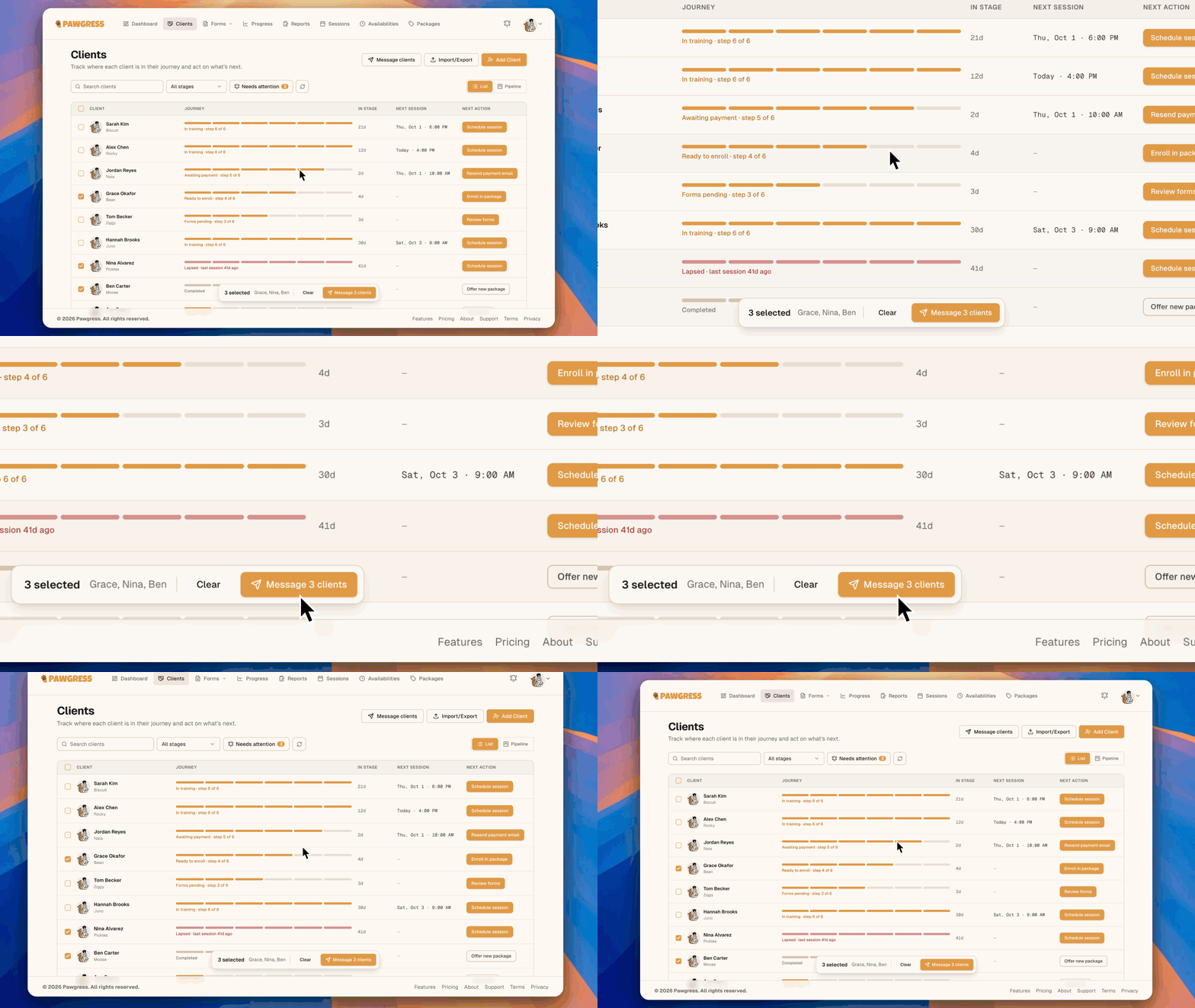
Pick clients on the Clients list, then click Message
Messages sent from the Clients page aren’t tied to a session, so session time and location aren’t available. If your message uses them, Pawgress highlights the fields and asks you to remove them before sending.
Writing Your Message
The message panel has a Write and a Preview tab.From and To
- From shows the email account your message sends from. Click Change to switch accounts on the Integrations page.
- To lists everyone the message is for. Untick anyone you want to leave out.
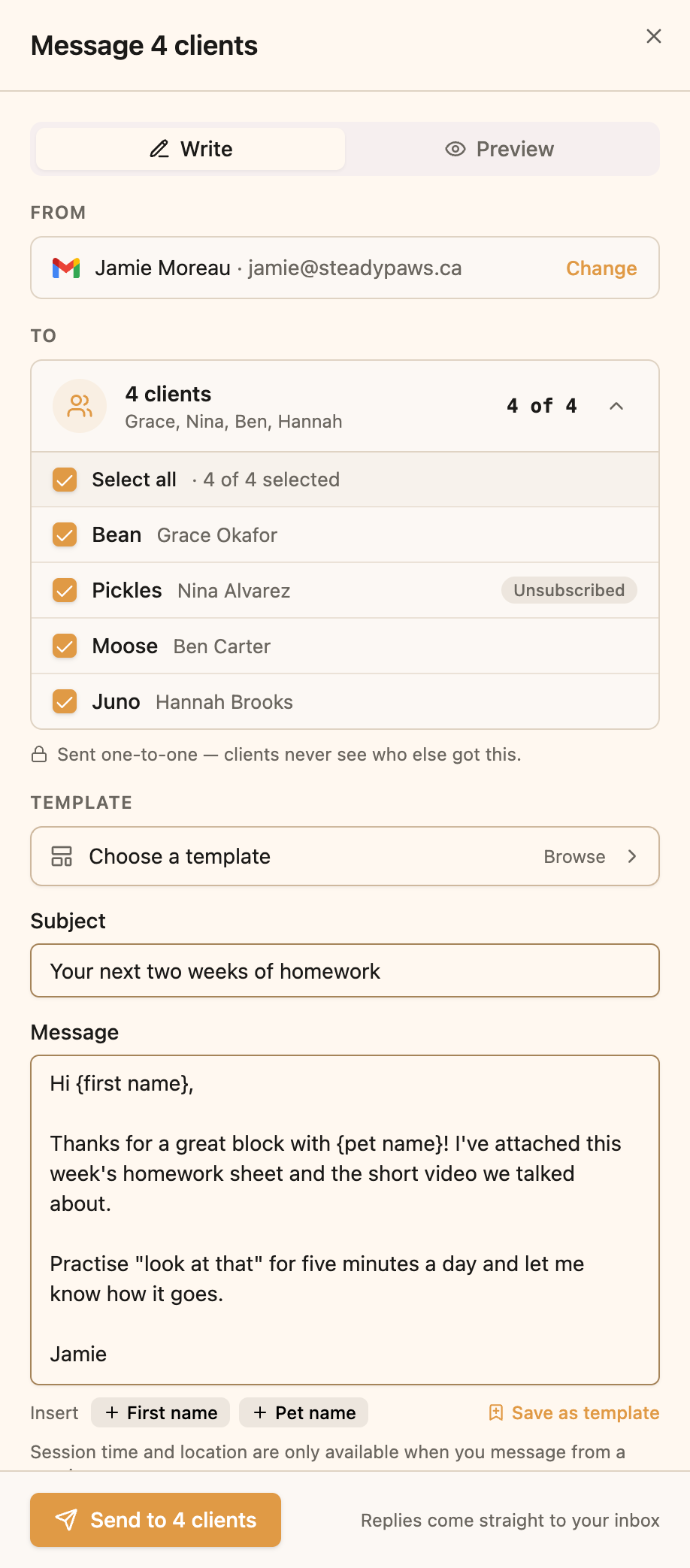
Write your message, choose who gets it, and insert fields
If a client has more than one dog, a picker next to their name lets you choose which pet
{pet name} refers to, or All of them. When you message from a session, the session’s own dog is always used.
Kind of message
Choose Service message for updates about bookings, sessions, or training, or Promotional message if any part of it promotes classes, packages, or offers. Service is the default. See Service vs. Promotional Messages for how to choose and who can receive promotions.Subject and message
Write your subject and message as plain text. Line breaks and blank lines are kept, and web links you type become clickable. To start from a saved message, click Choose a template or Browse. See Message Templates.Personalize with fields
Click Insert to add a field that fills in for each recipient:
So “Hi
{first name}, please bring a towel for {pet name}” reaches Sarah as “Hi Sarah, please bring a towel for Biscuit.”
Attachments
Drop files onto the Attachments area, click browse, or click add a link.- Files: PDFs, images (JPEG, PNG, WebP), and Word documents (.docx) — up to 10 MB each and 16 MB per message
- Links: up to 10, such as a YouTube video. Links show as cards in the email; videos get a play button.
Previewing Before You Send
Click the Preview tab to see exactly what your client will receive, with every field filled in. If you’re messaging several people, use the arrows to step through each recipient’s version.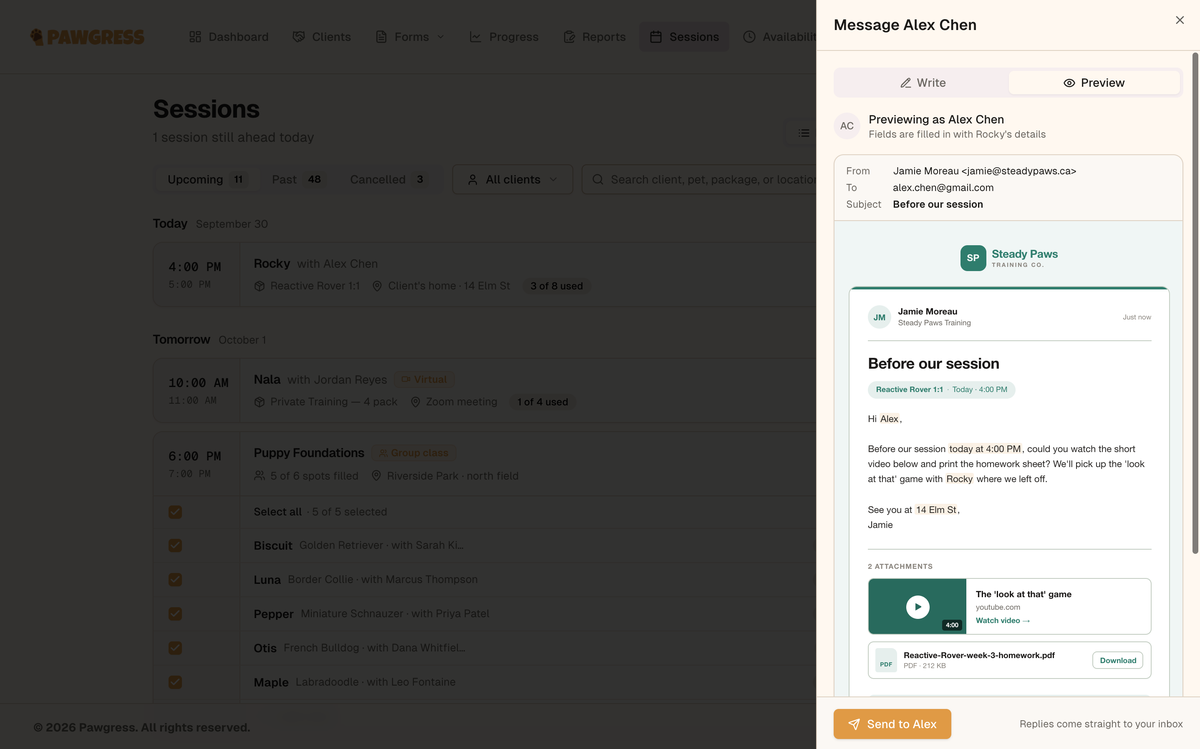
The preview shows the real email, with each field filled in for that client
Sending
Click Send to Alex (or Send to 5 clients). If some recipients can’t receive this kind of message, the button tells you — for example Send to 4 of 5. Large sends go out in the background. You can close the panel; Pawgress lets you know when it’s done:- Message sent — everyone got it
- Message sent with problems — open the message to see who didn’t get it and why
- Sending paused — your email provider asked Pawgress to slow down (it resumes on its own in a few minutes), or your email account needs reconnecting
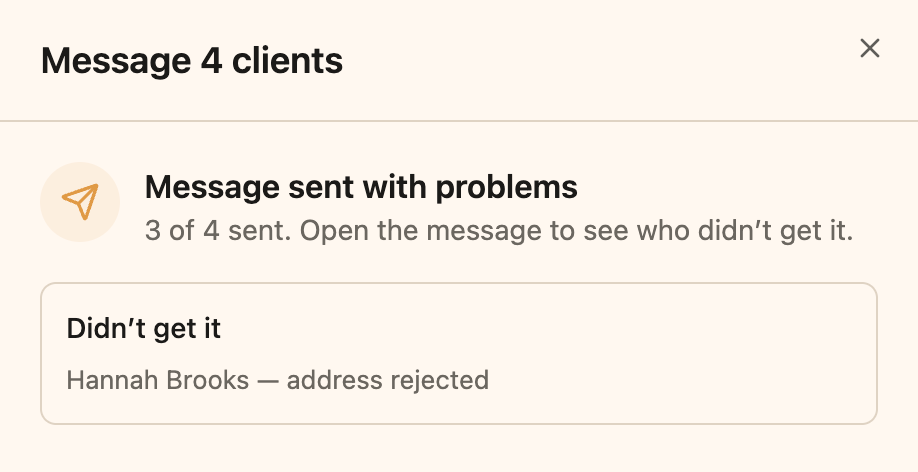
Pawgress tells you when a message has gone out, and who didn't get it
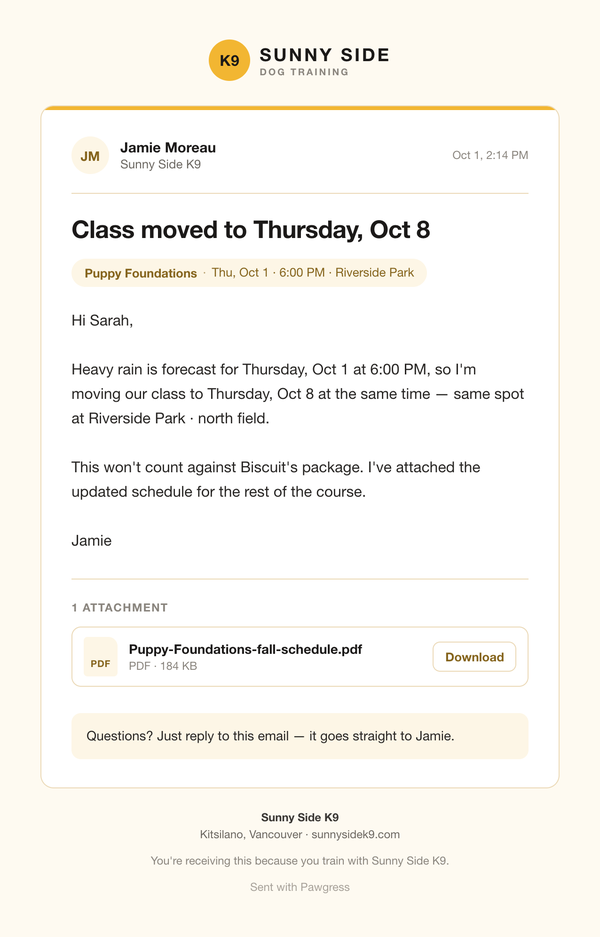
What your client receives — from you, with your branding and their details
“We can’t confirm these went out”
Occasionally a connection drops at the exact moment an email is handed to your provider, and Pawgress can’t tell whether it was sent. Those recipients are listed separately. Check your Sent folder first (or ask the client) — if the email went out, there’s nothing to do. Only click Send again anyway if it isn’t, or the client may get two copies.Replies
Replies go straight to your own inbox — Pawgress never sees them. Every email ends with a note telling your client “Questions? Just reply to this email — it goes straight to Jamie” (with your first name).Limits
These keep your own email account in good standing — Gmail and most providers slow down or block accounts that send in bulk.
Troubleshooting
The send button is greyed out
Check that:- At least one recipient is ticked and can receive the message
- The subject and message aren’t empty
- There are no highlighted session fields on a message from the Clients page
- For a service message flagged as possibly promotional, you’ve ticked This message has no promotional content or switched to Promotional message
”Messaging is paused on your account”
Messaging is paused automatically if many of your messages are rejected by email providers in a short time. Contact support to restore it.Additional Help
- Email: support@pawgress.ca
- In-app: Click Support in the navigation