

Package Overview
Training packages define your service offerings: what’s included, how many sessions, how long each runs, what it costs, and when it can be booked. Clients are enrolled in packages, and sessions are scheduled against them.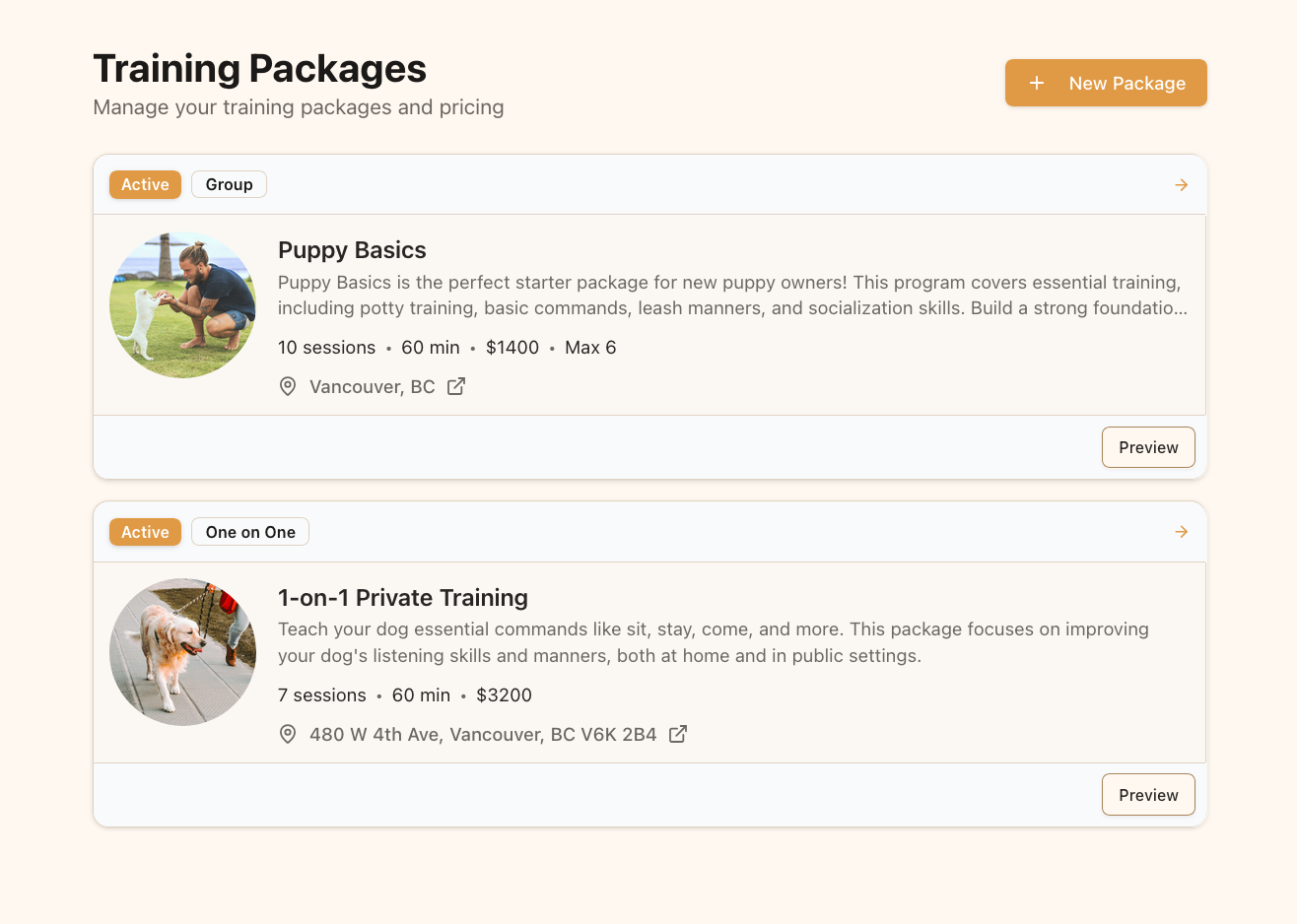
The Packages page displays all your available service offerings
Creating Your First Package
Step 1: Navigate to the Packages Page
Click Packages in the main navigation.Step 2: Create a New Package
Click New Package to open the package form.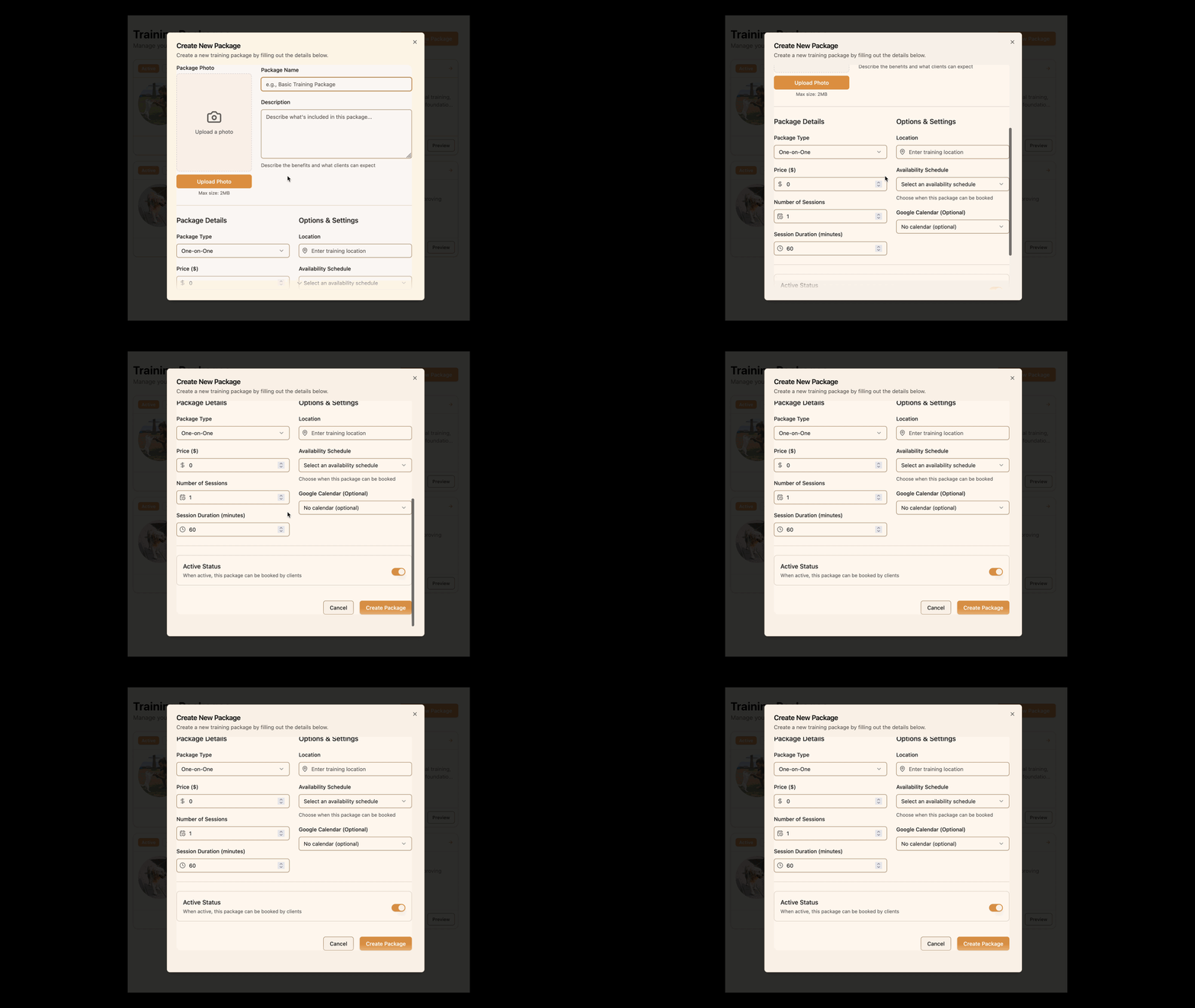
Click “New Package” to create a new training package
Choosing a Package Kind
At the top of the form is the Free consultation toggle, which determines what kind of offering you’re creating.Regular packages
Leave the toggle off for a normal paid package: multiple sessions, a price, and payment collected through Stripe.Free consultations
Turn the toggle on for a free consultation — a lead-generation offering for prospects who aren’t clients yet. Consultations are automatically:- One session and free (price and session count are fixed)
- Publicly bookable, with no Pawgress account needed
- Confirmed immediately on booking, bypassing Stripe entirely
Package Details
Package Photo
- Click the photo upload area
- Select a high-quality image representing the package
- Keep the image under 2MB
Basic Information
- Package Name — clear and descriptive (e.g. “Puppy Basics — 6 Week Program”)
- Description — what clients get, the benefits, and who it suits. This is a key factor in purchasing decisions and appears on your public booking page.
Structure and Pricing
For regular packages:- Package Type — one-on-one or group training
- Price — the total cost for the whole package, in your default currency
- Number of Sessions — how many sessions are included
- Session Duration — how long each session runs, in minutes
- Maximum Participants — for group packages, the capacity per session
Location
Where sessions take place. This pre-fills the location on each session you schedule, and can be overridden per session.Availability Schedule
Link the package to one of your availability schedules. This determines when sessions under this package can be booked.Availability SchedulesYou’ll need at least one availability schedule before your package can be booked publicly. See Setting Up Your Availability.
Session Format
Choose the format sessions under this package default to:- In-person
- Zoom — a Zoom meeting is created for every session (connect Zoom)
- Google Meet — a Meet link is created for every session (connect Google)
Google Calendar
Optionally select a Google Calendar. Sessions booked under this package are added to that calendar automatically. See the Google Calendar guide.Buffer Times
Set buffer time before and after each session, from 0 to 120 minutes. Buffers block out the surrounding time so clients can’t book back-to-back, giving you room for travel, setup, and notes.Public Scheduling
Control whether clients can book this package themselves through a public link:- Enable public scheduling to make the package bookable via its link
- Optionally set a booking slug — a friendly URL fragment like
puppy-training-jan-2025
Active Status
- On — the package is visible to clients and available for booking
- Off — the package is hidden from clients but still accessible to you
Saving Your Package
Review the details and click Create Package. You’re taken to the package details page, where you can edit anything, see the public booking link, and toggle its status.Managing Your Packages
On the Packages page, each package card shows its name, price, and session count. Click through to view or edit, and use the status toggle to activate or deactivate quickly.Package Strategy Tips
- Free consultation first — a short free consultation converts browsers into clients better than any other offering
- Tiered offerings — basic, standard, and premium at different price points
- Specialized packages — puppy training, behavior modification, reactivity
- Seasonal offerings — packages tied to seasons or holidays