

Training Reports Overview
Training reports document your sessions, communicate progress to clients, and build a record of each pet’s development. You can write rich-text reports, attach photos and video, save reusable templates, and publish reports straight to your client’s account.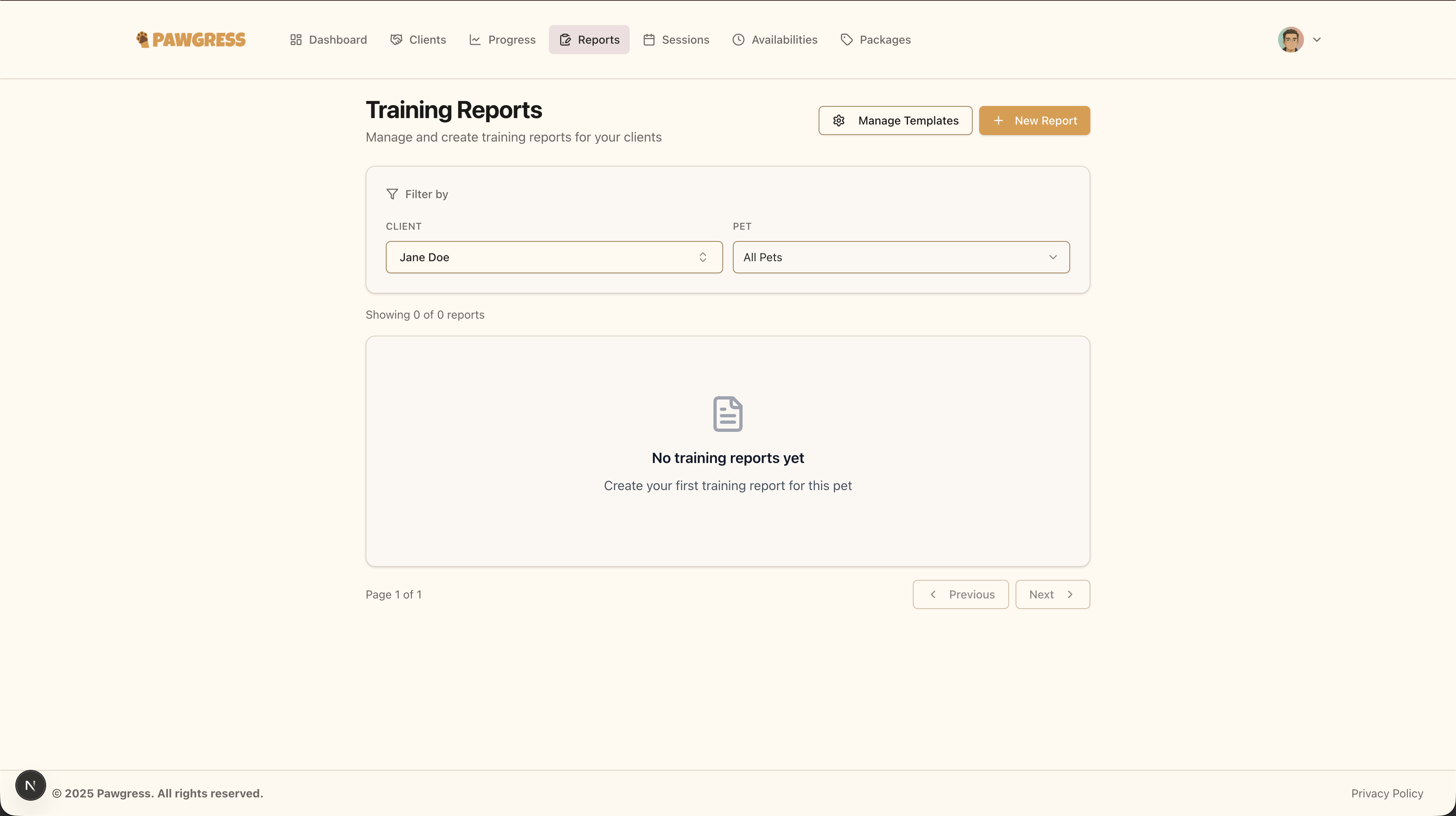
The Reports page displays all training reports you’ve created for your clients
Creating Your First Report
Step 1: Navigate to the Reports Page
Click Reports in the main navigation to see all your existing reports.Step 2: Create a New Report
Click the New Report button to open the report editor.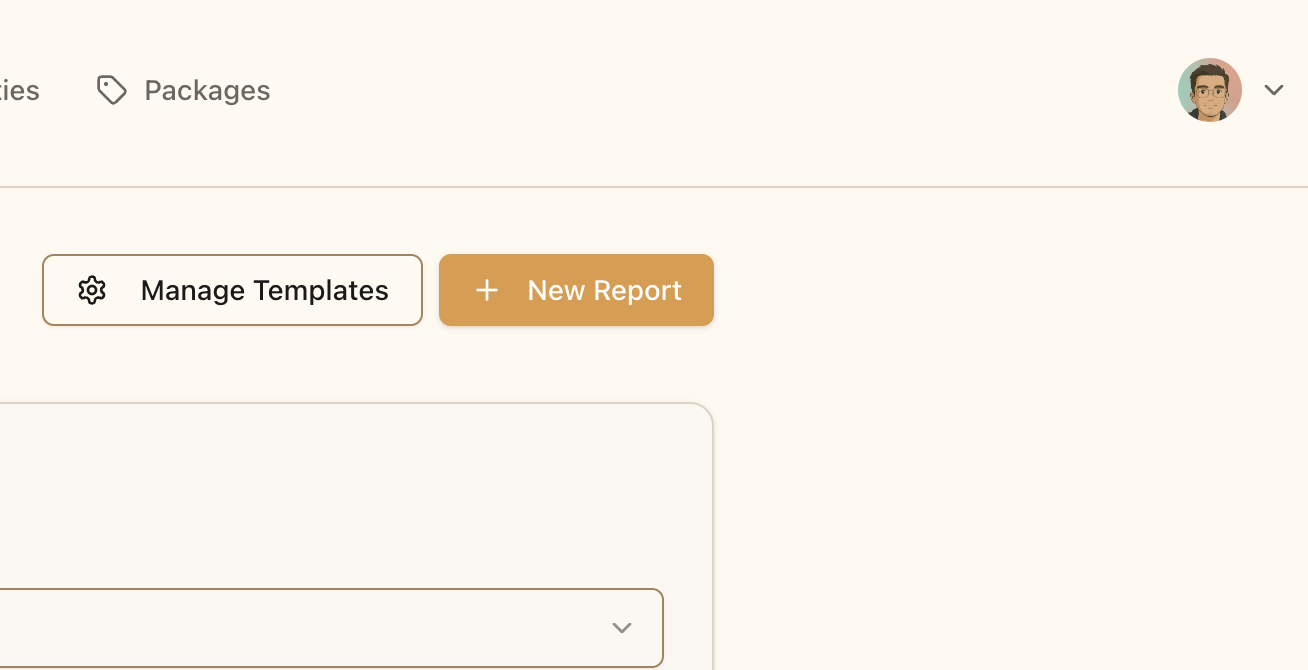
Click “New Report” to start creating a training report
Report Details
Select Client and Pet
Choose who the report is for:- Select a Client: Choose from your list of active clients
- Select a Pet: After choosing a client, select which of their pets the report is about
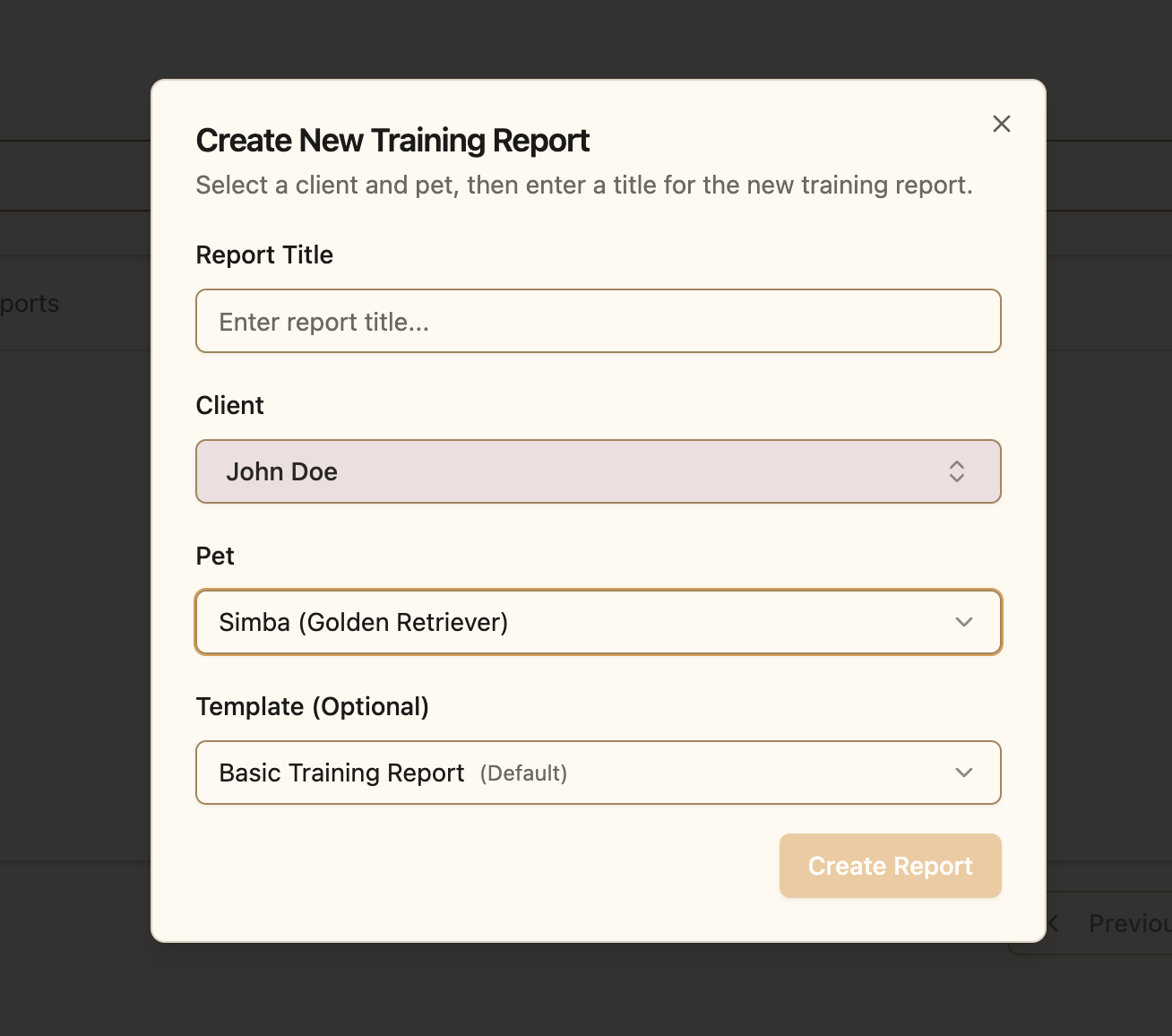
Select the client and pet for your training report
Choose a Template (Pro Feature)
If you’re on Pro, select a template to pre-fill the editor with your saved structure.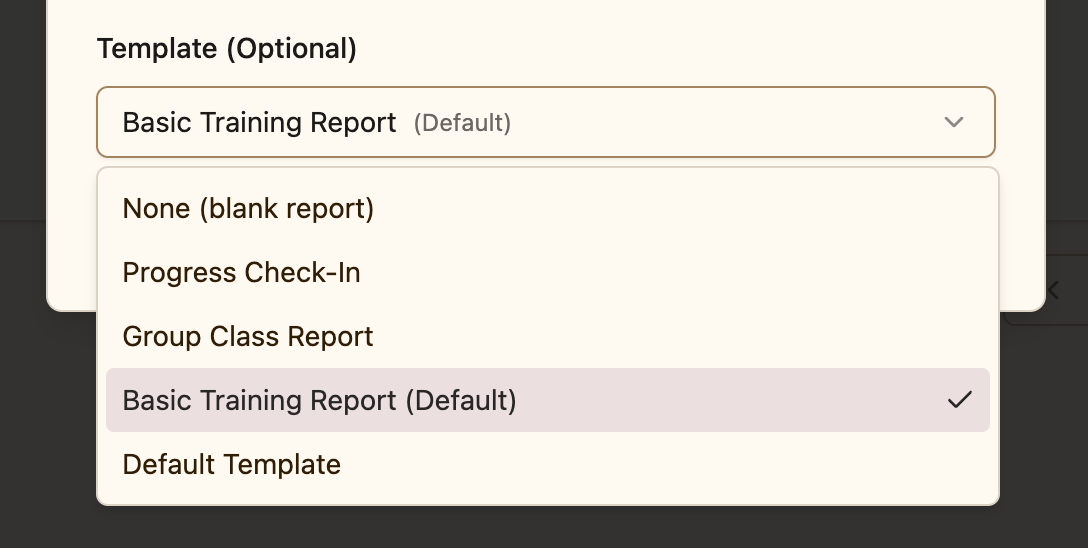
Choose from your library of report templates to streamline report creation
Templates are especially useful for:- Standardizing your reporting format
- Ensuring you cover all important topics
- Saving time on recurring report types (initial assessments, progress check-ins, graduation reports)
Managing Your TemplatesOpen Manage Report Templates from the report editor to create, rename, edit, and delete templates. Templates support variable placeholders, so recurring details can be filled in per report rather than retyped.
Write Your Report Content
The report editor is a rich text editor. You can:- Add headings for different sections (e.g. “Session Summary”, “Next Steps”)
- Format text with bold, italics, and bullet points
- Create lists for observations or recommendations
- Add links to relevant resources
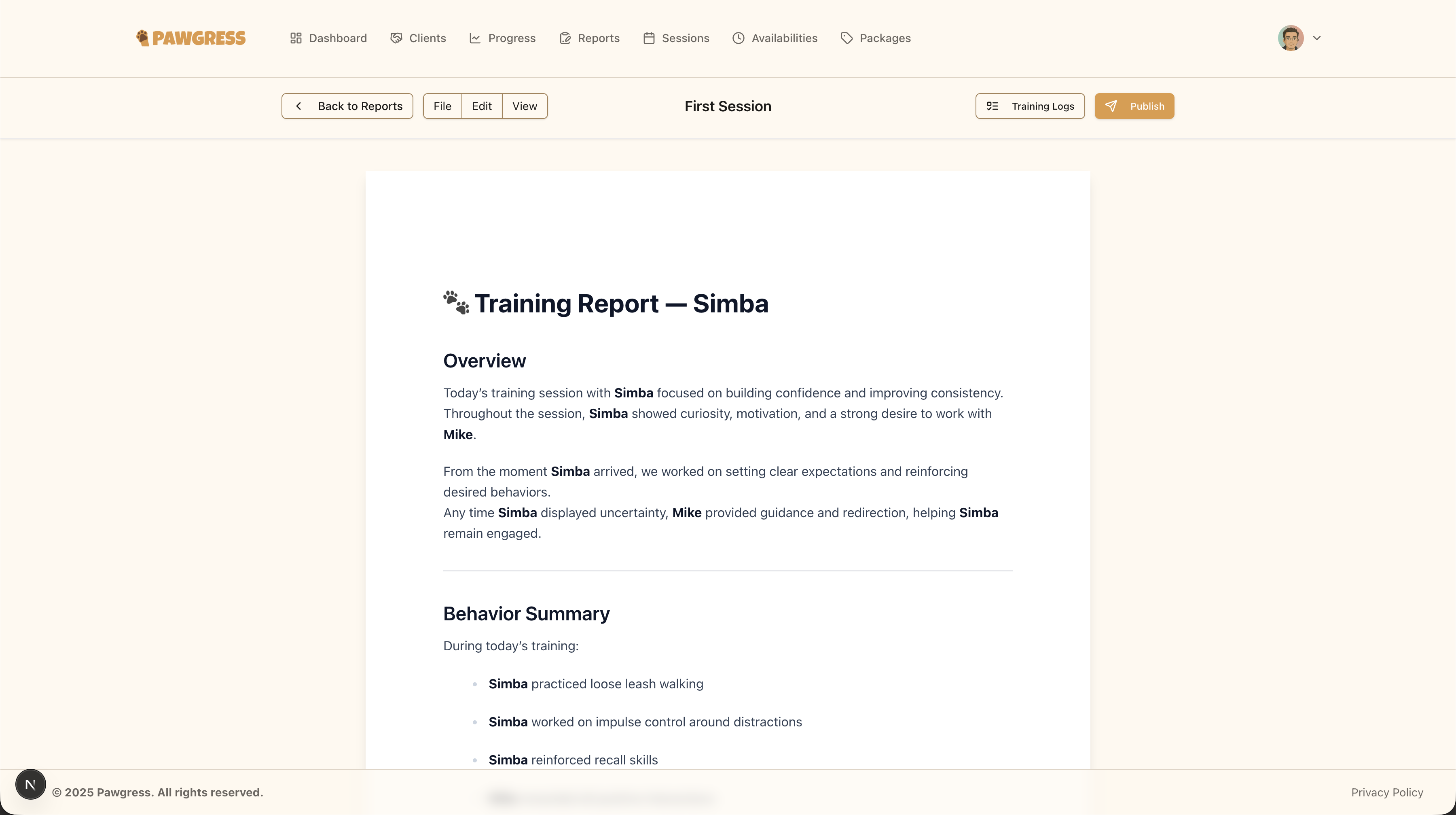
Use the rich text editor to create detailed, well-formatted training reports
Attach Media
Photos and video are often the clearest way to show a client what changed. A report can hold as many photos and videos as you like — the only limit is your media storage quota. Add them four ways:- Upload a video — a clip from your device, up to 500 MB per file.
- Upload a photo — JPG, PNG, or WebP, up to 25 MB per file.
- YouTube — paste a YouTube link. Links never count against your storage quota.
- Library — pick a photo or video you’ve already uploaded, with no second upload.
Storage limitsBasic includes 2 GB of media storage (photos and videos combined); Pro includes 50 GB. You can see your current usage any time in your Media Library.
Common Report Sections
Consider including:- Session Overview: Brief summary of what was covered
- Behavior Assessment: Observations on the pet’s current behaviors
- Progress Since Last Session: Improvements and changes noted
- Challenges: Any difficulties encountered during training
- Accomplishments: Successes and milestones achieved
- Homework: Practice activities for the client to work on
- Next Session Goals: What you’ll focus on in upcoming sessions
Saving and Publishing Reports
Drafts
A report stays a draft until you publish it. Drafts are visible only to you, can be edited freely, and show up in the Incomplete Reports card on your dashboard so you don’t lose track of them.Publishing
When your report is ready to share, click Publish and confirm. On publish, your client:- Receives an email notification
- Can view the report in their Pawgress account immediately
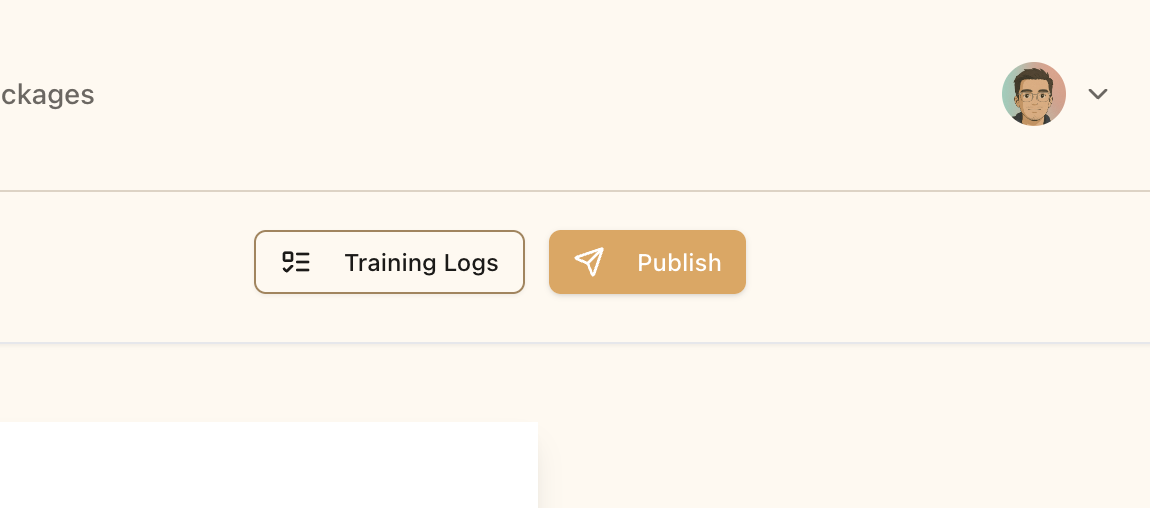
Publish your report to make it visible to your client
Managing Your Reports
Viewing and Filtering Reports
The Reports page lists your reports with the most recent first, showing the client, pet, status, and date. Use the search box and the status filter to switch between Published reports and Drafts.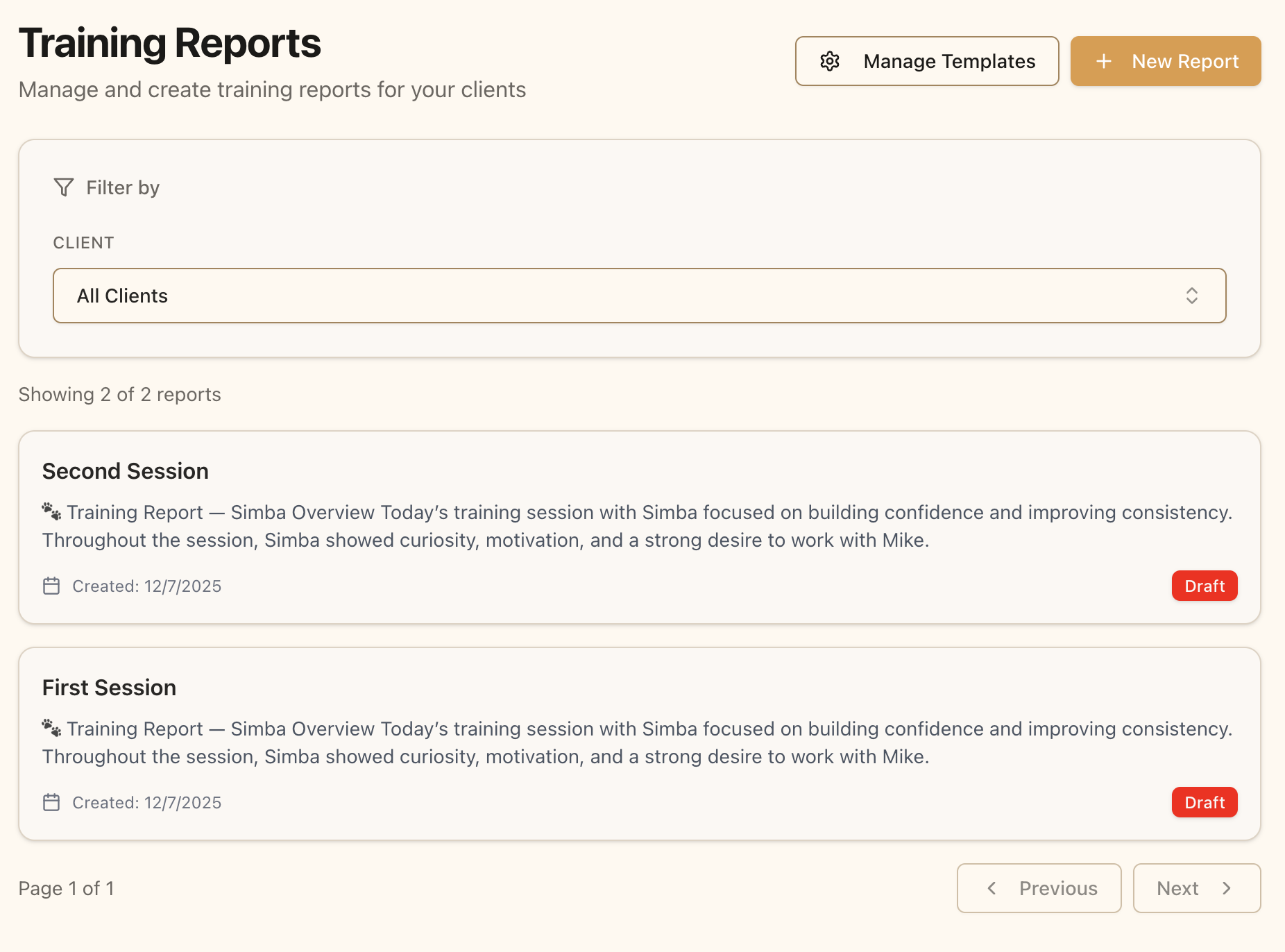
Your reports list shows all training reports you’ve created
What Clients See
Published reports appear on the client’s Reports page, where they can read your observations, view attached photos and videos, and browse the full report history for their pet.Report Best Practices
Consistency is Key
Establish a regular reporting schedule:- After every session: Document observations while fresh
- Weekly or bi-weekly: For ongoing training programs
- At milestones: When pets achieve significant goals
- End of package: A comprehensive summary when completing a program
Use Templates for Efficiency
On Pro, create templates for your common scenarios — initial assessment, weekly progress, behavior modification, graduation. Templates ensure you never forget a section and cut writing time considerably.Draft First, Publish Once
Because publishing locks a report, write in draft and review before you publish. Drafts are a safe place to work over several sittings.Next Steps
- Schedule training sessions and follow up with reports
- Track behavior progress using behavior logs
- Manage your media library