

What You Can Do with ChatGPT
Connect your own ChatGPT account to Pawgress, then tell ChatGPT how a session went in your own words: typed, or dictated on your phone right after the session. ChatGPT finds the session in Pawgress, reads the dog’s behaviors, recent progress and past reports, and writes a training report that follows your report template. It saves the report as a draft attached to that session. You review it, edit anything you like, and publish it yourself.ChatGPT only saves draftsChatGPT can’t publish a report, send anything to your clients, or change or delete a report you wrote. It never sees your clients’ contact details, payments, forms or waivers, or a dog’s health, medication or bite history.
Before You Connect
Turn off model training in ChatGPT
Unless ChatGPT’s Improve the model for everyone setting is off, OpenAI may use your conversations, including the client information Pawgress sends, to train its models. Turn it off before you connect:- In ChatGPT, open Settings
- Select Data controls
- Turn off Improve the model for everyone
Rating a response with a thumbs up or down can make that conversation usable for training even with the setting off.
Connect ChatGPT
Step 1: Open the setup steps in Pawgress
Click your avatar in the top-right corner and select Integrations, then choose AI assistants. On the ChatGPT card, click Set up (or How to use if you’re already connected).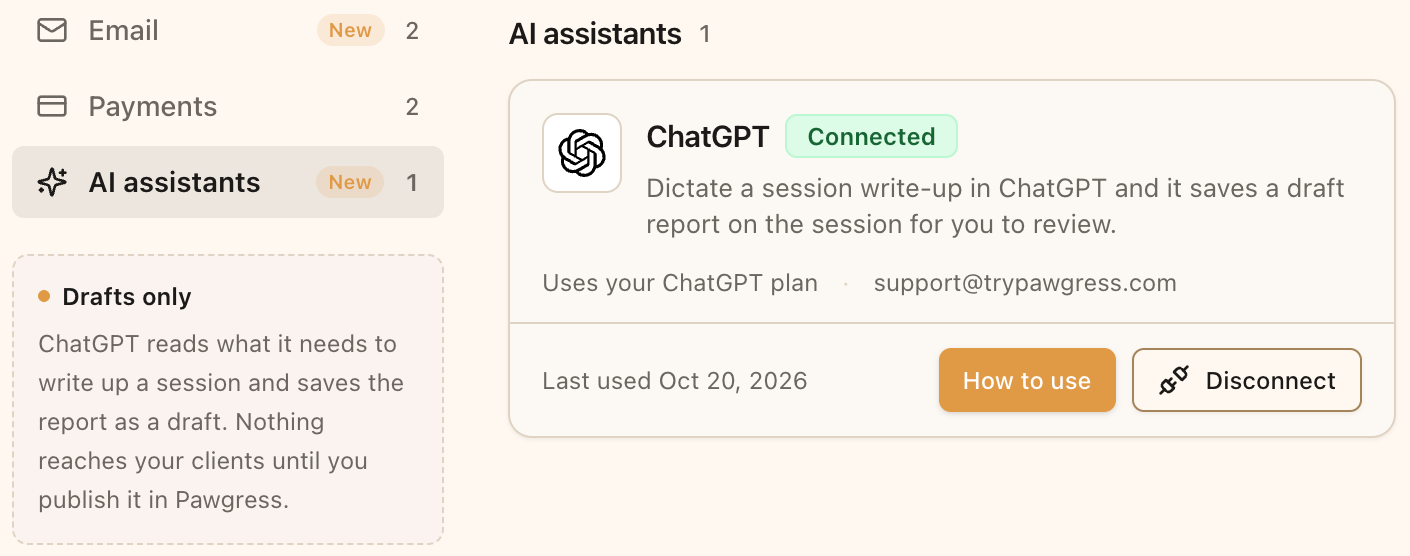
The ChatGPT card under AI assistants on the Integrations page
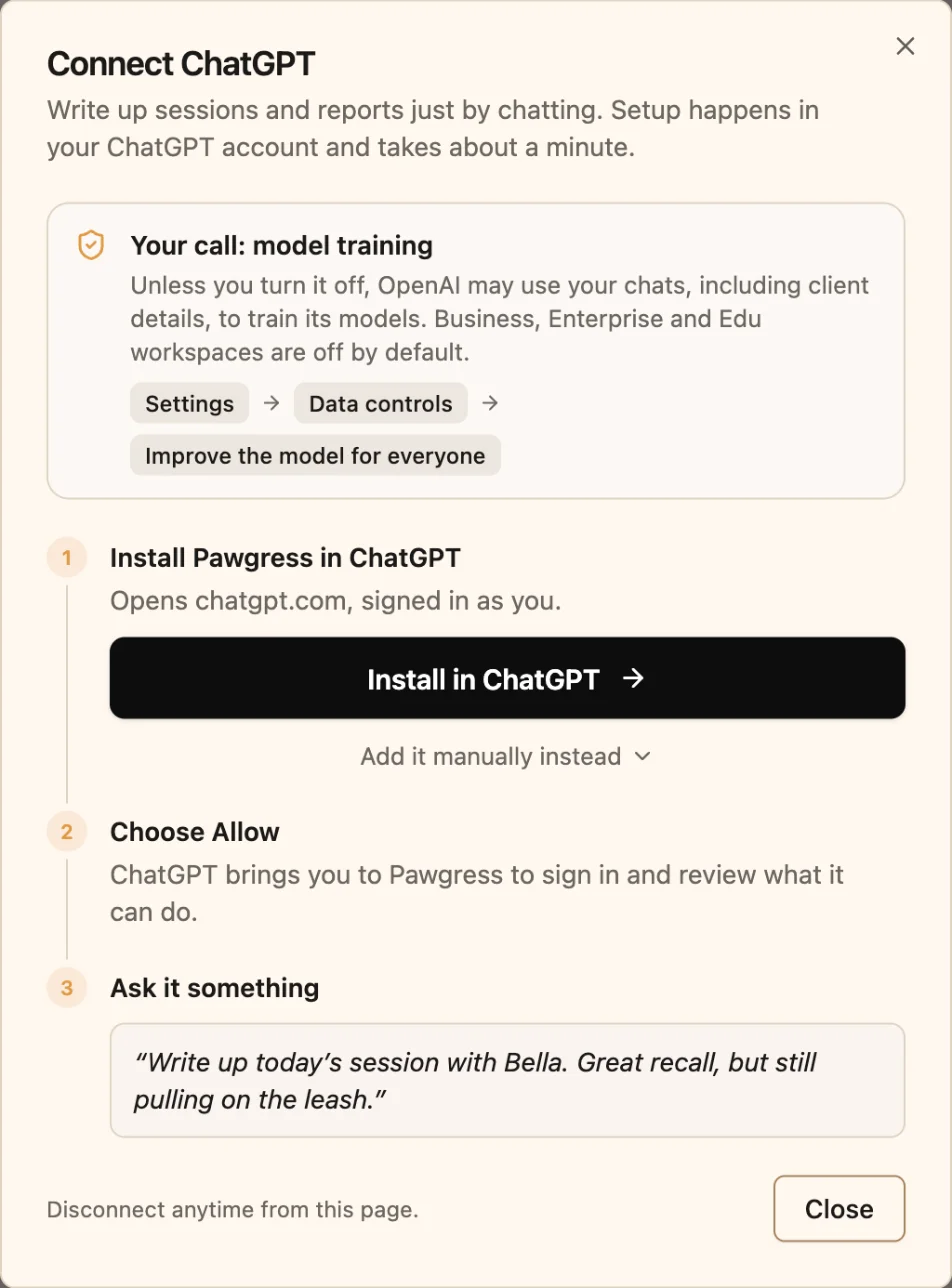
The setup steps, with the Install in ChatGPT button
Step 2: Install Pawgress in ChatGPT
Click Install in ChatGPT. Pawgress’s page opens in ChatGPT in a new tab. Sign in to ChatGPT if you’re asked to, and follow its prompts to add Pawgress.Can't install it? Add it manually
Can't install it? Add it manually
Some ChatGPT plans and workspaces can’t install from the page, for example when a workspace admin controls which apps are allowed. In that case you can add Pawgress as a connector yourself.In the setup steps in Pawgress, choose Add it manually instead to show the connector address, with a Copy button:Then, in ChatGPT:
- Open Settings → Apps & Connectors and create a connector. If you don’t see that option, turn on Developer mode under Advanced settings
- Name it Pawgress
- Paste
https://trypawgress.com/mcpas the server URL - Choose OAuth for authentication, and save
Step 3: Sign in and allow access
ChatGPT opens Pawgress. Sign in if you’re asked to, using your trainer account. The page lists what ChatGPT will be able to do, and what it can’t.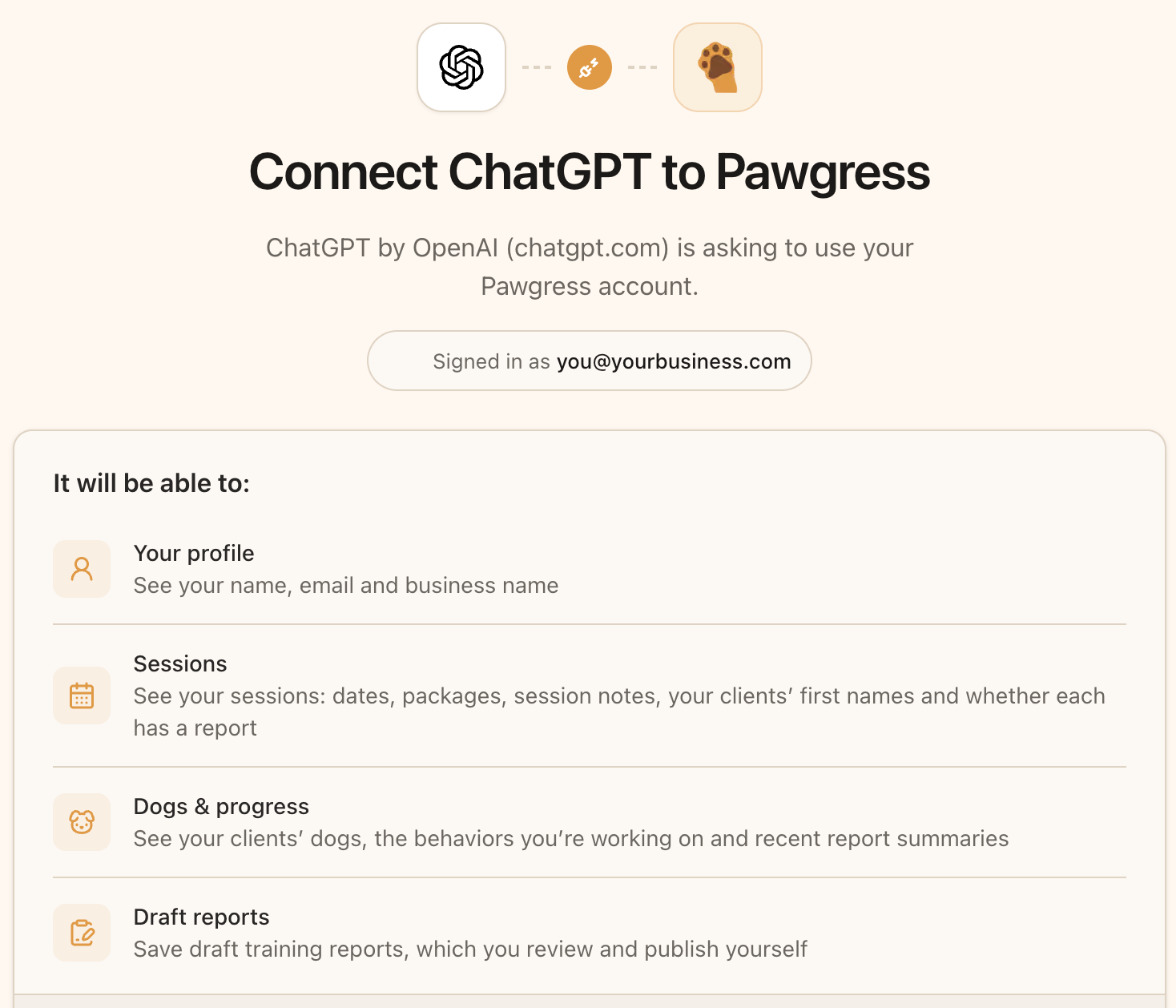
What ChatGPT asks to do with your Pawgress account
- you’re authorized to use the integration, and any consent your clients must give is in place
- Improve the model for everyone is off in ChatGPT, or you use a Business, Enterprise or Edu workspace
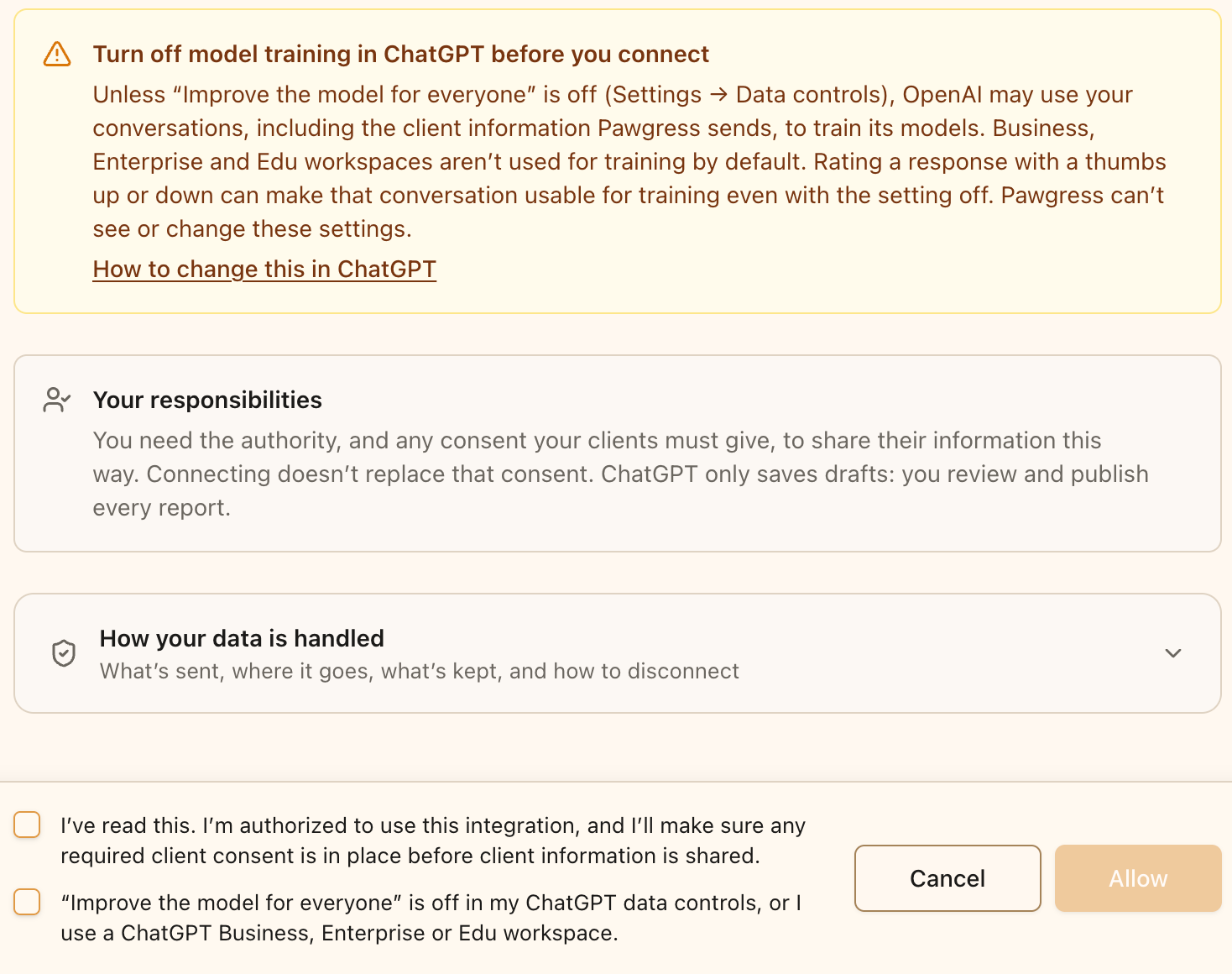
Both confirmations are required before you can allow access
Write Up a Session
In a ChatGPT chat, turn on Pawgress (from the tools menu, or by mentioning Pawgress), then describe the session. For example:Write up today’s session with Bella in Pawgress: loose-leash walking is much better, she still lunges at bikes. Homework: 10 minutes of pattern games a day.ChatGPT will:
- Find the session. It looks at your sessions from the last few days. Mention the dog’s or client’s name and the day so it picks the right one. If it picks the wrong session, tell it which one you meant.
- Read the context. The dog’s breed and age, the behaviors you’re working on with their recent scores, your last few report summaries, and your session notes.
- Save a draft report on the session, following the headings of your default report template, and give you a link to it.