

Why Use Templates?
Most of what trainers email clients is the same few messages: class moved because of the weather, running ten minutes late, bring a towel, here’s this week’s homework. Templates let you write each one once, with the right fields and attachments, and reuse it whenever you need it. Because templates use fields, one template works for every client:{first name}, {pet name}, {session time}, and {location} fill in fresh each time you send.
Creating a Template
There are two ways to create one.Save a message you’ve written
When you’re writing a message you’ll want again, click Save as template next to the message. The template editor opens with your subject, message, and attachments already filled in — give it a name and category, click Save template, and it’s ready next time.Start from scratch
- Open the message panel from Sessions or Clients (see Message Your Clients)
- Click Browse next to the template picker
- Click New template
- Fill in:
- Name — what you’ll see in the list, e.g. Class rescheduled (weather)
- Category — Schedule changes, What to bring, Homework, Welcome & admin, or Announcements
- Subject and Message — use Insert to add fields
- Usually sent as — Service or Promotional (see below)
- Attachments — files or links that should go out every time this template is used
- Click Save template
Using a Template
In the message panel, click Choose a template to pick one quickly, or Browse to search the full list. In the browser, templates are grouped by category. You can search by name or filter by category, and click any template to expand it and see the full subject, message, and attachments before you use it.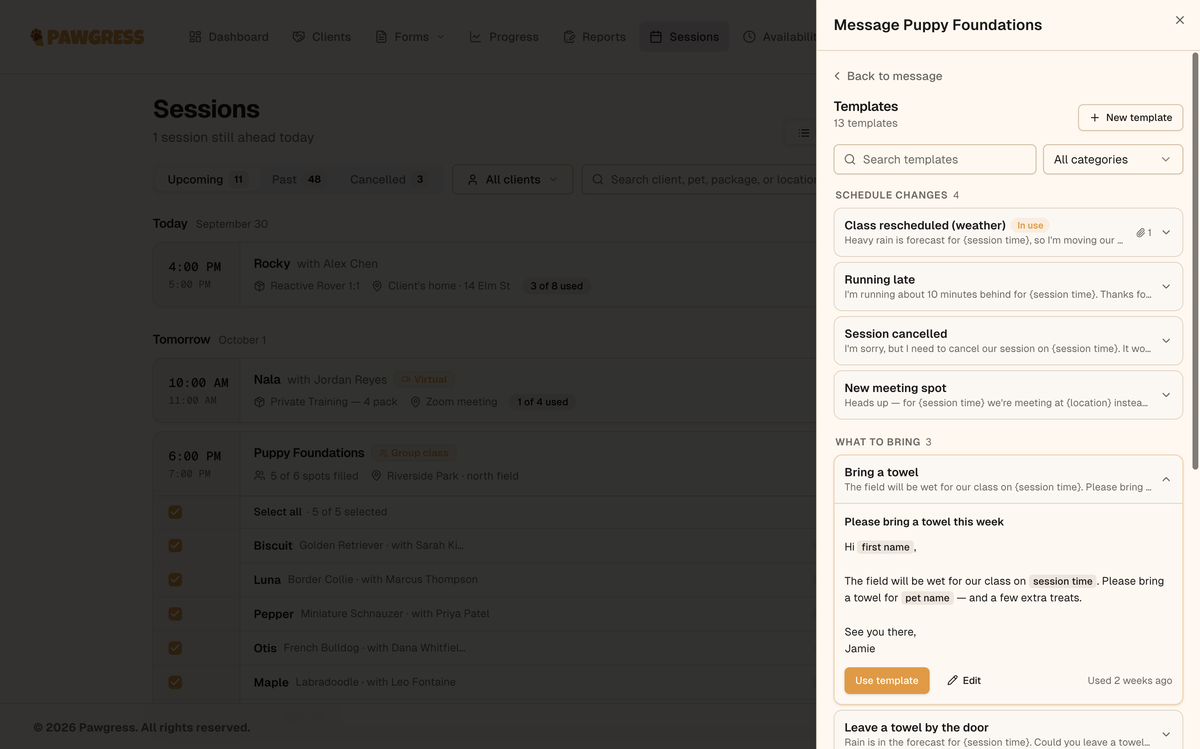
Browse templates by category and preview one before using it
Badges in the list
Each template also shows when you last used it, and a paperclip with the number of attachments it carries.
Service or Promotional by Default
Each template has a Usually sent as setting:- Service message — updates about existing clients, bookings, sessions, or training progress
- Promotional message — promoting classes, packages, special offers, or other services