

Getting Started with Sessions
Scheduling training sessions is at the heart of your dog training business. Pawgress lets you book one session or a whole package’s worth at once, checks for conflicts as you go, and keeps everything in a single workspace.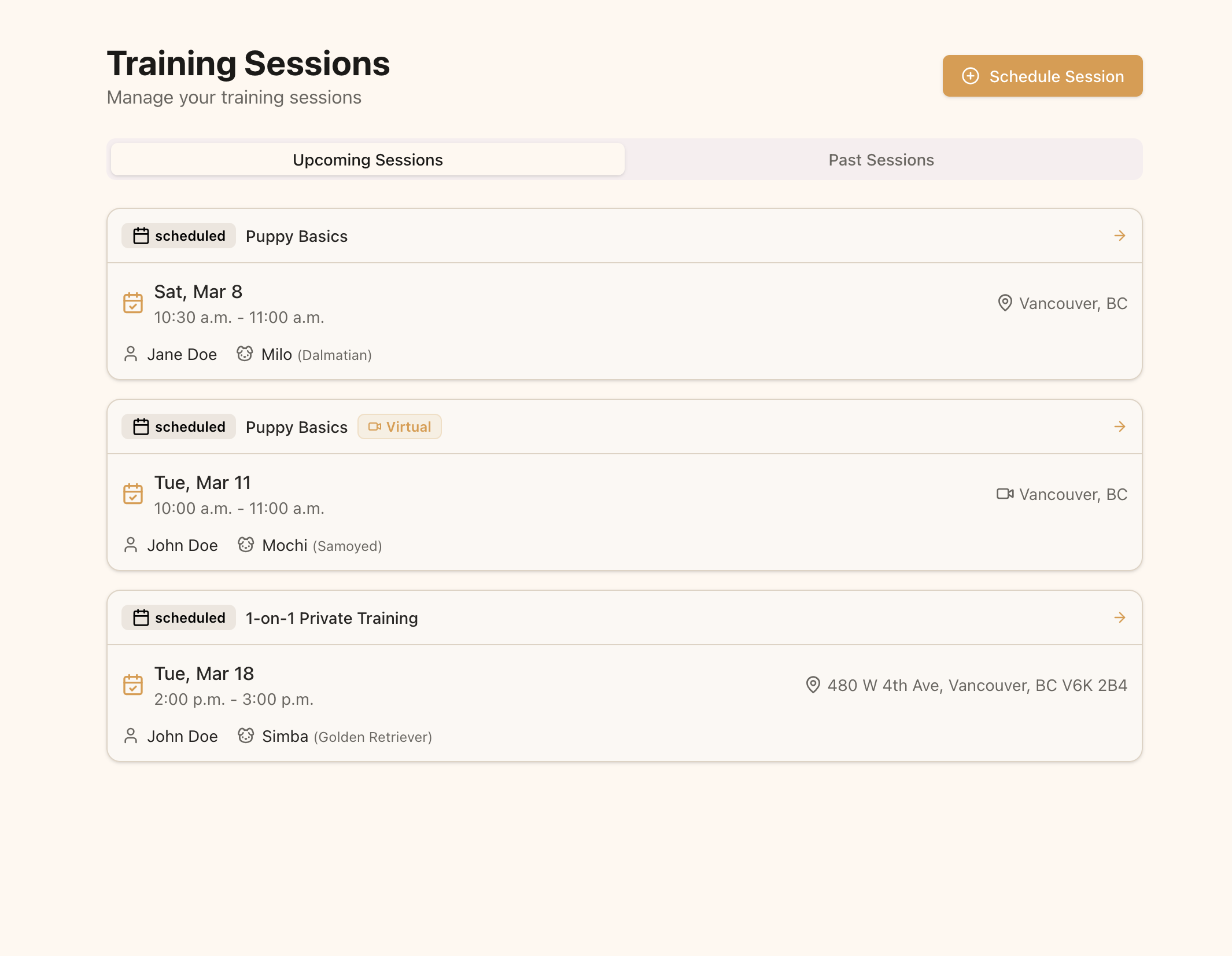
The Sessions page is your command center for all scheduled sessions
The Sessions Page
Click Sessions in the main navigation. The page gives you:- List and Week views — toggle in the top right to switch between a filterable list and a weekly calendar
- Upcoming, Past, and Cancelled segments — each showing a live count
- A client filter — narrow the list to a single client
- New session — opens the scheduling drawer
Creating a New Session
Click New session to open the scheduling drawer. It walks you through four short sections.
Click “New session” to open the scheduling drawer
Who
Search for and select the client this session is for. Start typing a name to filter your client list.Package
Once you pick a client, the drawer lists that client’s active enrollments — not your full package list. Each one shows how many sessions have been used out of the total, so you can see at a glance what’s left. Select the enrollment this session should count against. The package’s session duration and default location fill in automatically.If a client has no enrollments, you’ll need to enroll them in a package before you can schedule a session for them.
When
Choose between One session and Multiple:- One session — pick a single date on the mini calendar
- Multiple — tap every date you want. One session is created per date, all at the same time of day.
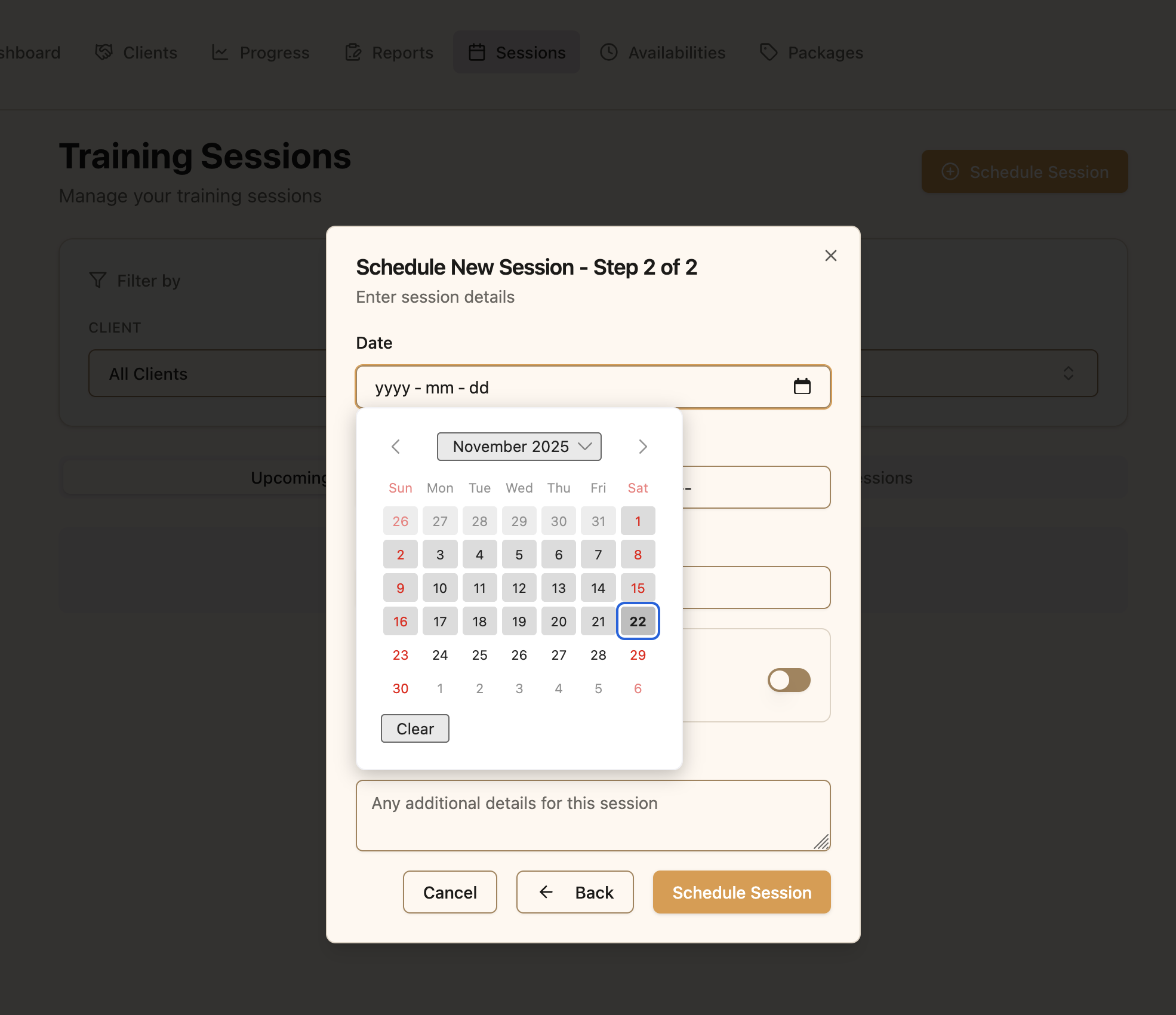
Pick one date or many, then set the start time
Conflict detection
Pawgress checks each date you pick against your existing sessions. If one overlaps, the drawer flags it with “Overlaps another session at …” and offers the next free time as a one-tap suggestion. You can’t save until every conflict is resolved, so double-booking is caught before it happens.If you select more dates than the enrollment has sessions remaining, Pawgress warns you that the extras will need a renewal or a new package. You can still proceed.
Where
Choose the session format:- In-person — always available; set the location below
- Zoom — creates a Zoom meeting automatically (connect Zoom first)
- Google Meet — creates a Meet link automatically (connect Google first)
Notes
Add anything you want to remember for this session — “Bring clicker and treats”, “Focus on leash reactivity”. Notes are for you.Finalizing the Session
Review the details and save. Sessions appear immediately in your Upcoming segment, and your client sees them in their portal.Managing Your Sessions
Segments
The Sessions page splits your work into three segments:- Upcoming — scheduled future sessions, earliest first
- Past — completed sessions and any scheduled sessions whose time has passed
- Cancelled — sessions you’ve cancelled
Switch between Upcoming, Past, and Cancelled sessions
Session Cards
Each session shows the client and pet, package, date and time, location, a Virtual badge for Zoom and Meet sessions, and its status. Click a session to open it in the drawer, where you can change any detail or cancel it. In Week view, completed sessions are shown solid.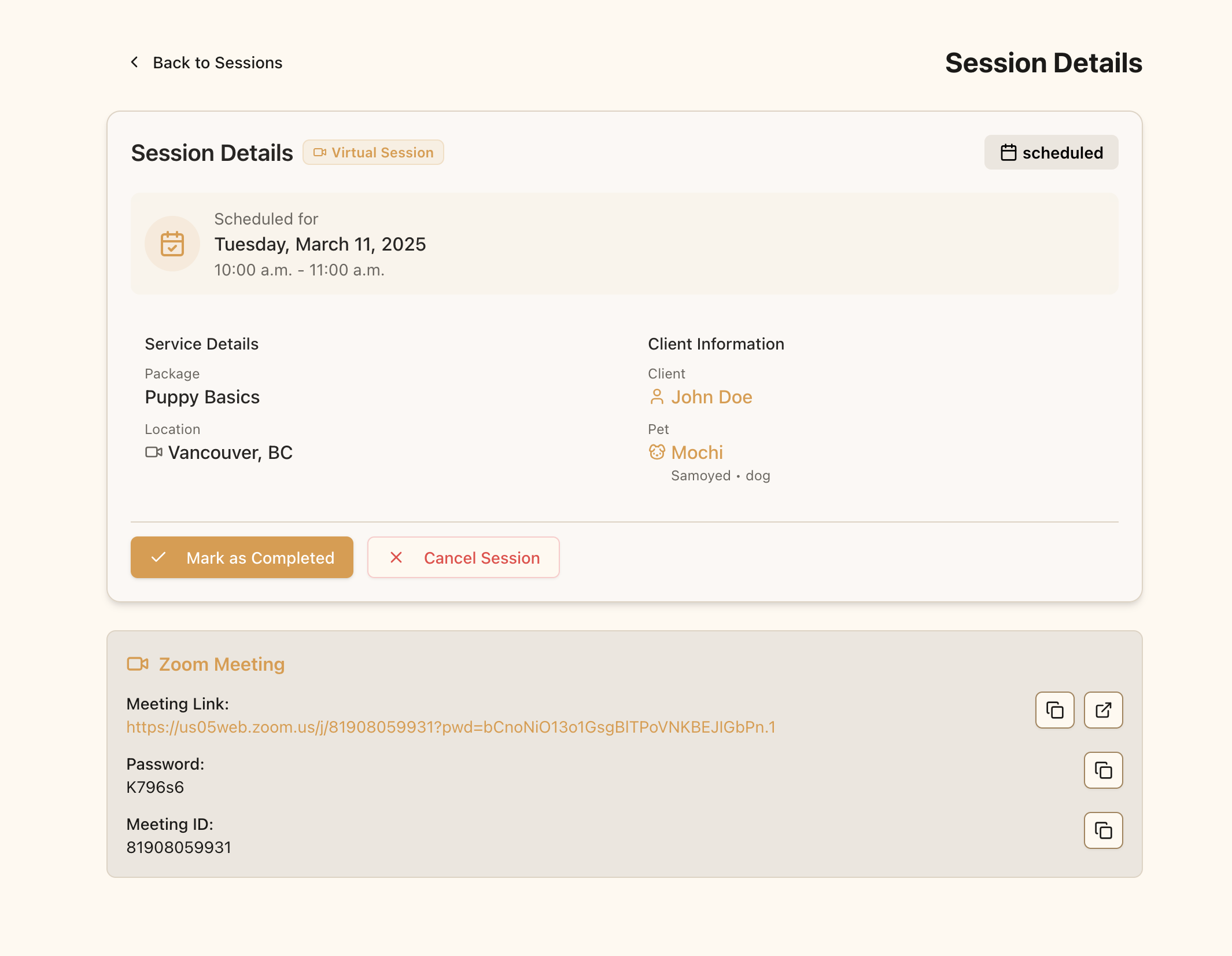
Session cards display all the essential information about each appointment
After the Session
When a session is done, click Complete on the session and confirm. Completing a session:- Moves it to your Past segment
- Counts it against the client’s enrollment, updating the remaining sessions
Next Steps
- Set up your availability so clients can book themselves
- Share a public booking link for a package
- Create a training report documenting the session
- Connect Google Calendar to keep your schedule in sync