

Your Profile Page
Your profile page is both your public shop window and your settings panel. Click your avatar in the top-right corner and select Account to open it. The page is organised into five sections, listed in the sidebar:- Personal details — your name, phone, and location
- Notifications — email notifications and client session reminders
- Booking & billing — cancellation rules, booking notice, and your default currency
- Trainer profile — biography, specialties, certifications, experience
- Branding — your logo, brand colour, and business name (Pro)
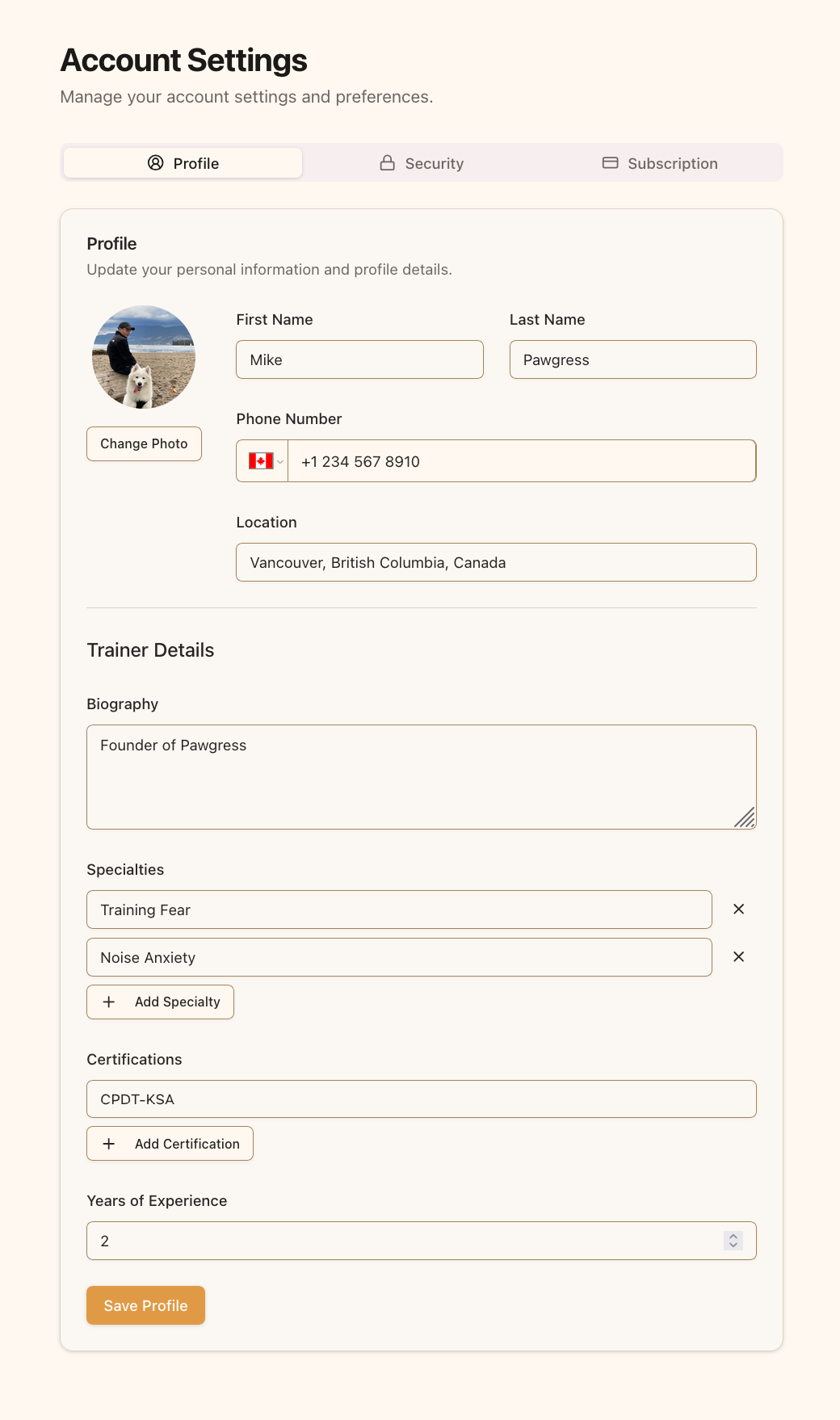
The profile page holds your public profile and your account settings
How saving worksPreferences — toggles, dropdowns, and switches — save the moment you change them. Anything you type is held until you click save.
Personal Details
Profile Photo
A professional photo helps clients recognise you and builds trust:- Click the avatar or the change photo button
- Select a clear, professional photo of yourself
- Upload an image smaller than 2MB in JPG, PNG, or GIF format
Contact Details
- First Name and Last Name — as you’d like clients to see them
- Phone Number — your business contact number, visible to connected clients
- Location — your primary training area
Notifications
Email notifications
Turn this on to get an email when clients pay for enrollments and on other account activity. It’s on by default.Session reminders
Send your clients an automatic email before their scheduled sessions. When enabled, choose when the reminder goes out. You can pick up to two reminder times from: 1 hour, 2 hours, 12 hours, 24 hours, 48 hours, 72 hours, and 1 week before the session.Booking & Billing
These settings govern how clients book and cancel through your public booking links.Cancellation notice
How far ahead clients must cancel a session. Options range from any time through 1, 2, 4, 12, 24, 48, and 72 hours, up to 1 week. Set this to match the cancellation policy you actually enforce — if you charge for cancellations inside 24 hours, set 24 hours here so the system backs you up.Minimum booking notice
How far in advance clients must book. Options run from no minimum up to 72 hours.Minimum booking notice applies only to clients booking themselves. It never restricts sessions you schedule yourself, so you can still slot in a same-day session when it suits you.
Default currency
The currency used for new packages and enrollments. Pawgress supports USD, CAD, GBP, EUR, AUD, NZD, CHF, JPY, SEK, NOK, DKK, MXN, BRL, SGD, and HKD.This is the currency you charge your clients in. It’s separate from the currency your own Pawgress Pro subscription is billed in — see Subscription Management.
Trainer Profile
This section is what prospects read on your public booking pages.Biography
Write a compelling biography covering:- Your training philosophy and approach
- What makes your style distinctive
- Your background and how you got started
- Your passion for working with dogs and their owners
Specialties
List your areas of expertise — type a specialty and press Enter to add it:- Puppy training and socialization
- Behavior modification (reactivity, aggression, anxiety)
- Training approaches (positive reinforcement, clicker training)
- Specialized work (therapy dog preparation, service dog training)
Certifications
Add your professional credentials the same way — CPDT-KA, IAABC, KPA-CTP, educational qualifications, and professional memberships. These do a great deal of the trust-building on a public booking page.Years of Experience
The number of years you’ve been training professionally.Profile Completeness MattersEverything in this section appears on your public booking pages. A prospect deciding between you and another trainer is reading exactly these fields — it’s worth the twenty minutes.
Branding
Branding replaces Pawgress’s look on your client-facing pages with your own:- Show my branding to clients — the master switch; when off, pages use Pawgress branding
- Business name — your business name, shown in place of “Pawgress”
- Brand colour — a hex colour like
#CE8540, applied to buttons and accents - Logo — your logo, with a built-in cropper
- Hero image — a banner image for the top of your public pages